Use the JumpCloud Menu Bar App
The JumpCloud Menu Bar App gives users access to JumpCloud resources from the macOS menu bar. From the app, users can open the User Portal, change or sync their JumpCloud IdentityOS® password when Password Sync is enabled, and install approved software from the Self Service App Catalog.
The Menu Bar App is different from the JumpCloud Mac agent. The agent runs in the background and helps you secure and monitor the device. The Menu Bar App shows an icon in the menu bar so users can reach JumpCloud resources without Admin intervention. Both must run on the device because the agent installs the Menu Bar App.
Benefits
You can hide the Menu Bar App with a policy, but we recommend leaving it enabled so users can:
- Use a hardened device. JumpCloud-managed Mac computers use encryption, security policies, multi-factor authentication (MFA), strong passwords, and malware scanning. That gives users a secure place to manage identities and passwords.
- Reduce phishing risk. Instead of relying on users to spot password-reset scams or fake portals, route credential changes through the Menu Bar App on the managed device.
- Change passwords faster. Users change or sync their JumpCloud IdentityOS password from the menu bar without opening a browser or finding an email. Native OS notifications remind them when a password change is due.
- Update passwords everywhere at once. A password change in the Menu Bar App updates related credentials, including Google Workspace or Microsoft 365, network/RADIUS, on-premise or cloud apps, and Samba or NAS file shares.
- Simplify identity access. One app gives users a clear path to JumpCloud resources instead of juggling separate portals and password tools.
- Install approved software. When you assign App Catalog apps with App Delivery Method set to Self Service, users can browse, install, update, and uninstall those apps from the Self Service App Catalog in the Menu Bar App. See Get Started: Self Service App Catalog.
What the Menu Bar App Does
The JumpCloud agent installs the Menu Bar App automatically. After users authenticate once, they can use the app to:
- Change corporate account passwords
- Manage MFA tokens
- Start SAML-based sessions for apps
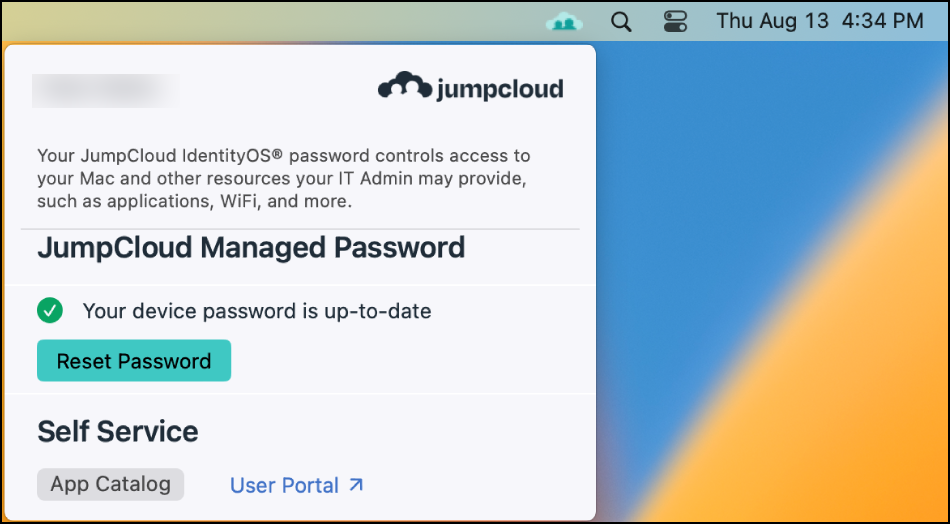
How the Menu Bar App Works
- Install the JumpCloud agent on the Mac.
- The agent silently installs the Menu Bar App.
- In the Admin Portal, confirm the Mac has a status of Active, System Reporting (green checkmark).
- The user signs in to the Mac with JumpCloud IdentityOS credentials.
- The Menu Bar App icon appears in the menu bar.
- The user opens the JumpCloud User Portal from the app to access allowed resources without entering JumpCloud credentials again.
Considerations
- The Menu Bar App appears in the menu bar on Mac computers running the JumpCloud agent when a user is signed in.
- You can hide the Menu Bar App from Mac computers with a JumpCloud App Controls policy. See Create a Device Level macOS JumpCloud App Controls Policy.
- Password Sync doesn't control whether the Menu Bar App appears. The app appears regardless of the Password Sync setting. When Password Sync is set to No for a user on a device, the JumpCloud password change section is hidden, and the user manages a local device password.
- When a user changes a password in the Menu Bar App, they enter their current password, then their new password, then enter the new password again to confirm. JumpCloud syncs the new password with FileVault® and Keychain®.
- Password changes outside the Menu Bar App, such as in the User Portal or Active Directory, require a password sync in the Menu Bar App. The user enters their old (previous) password. If they leave it blank, JumpCloud archives the existing keychain and generates a new one.
- Active Directory-managed users can't reset their passwords in the Menu Bar App.
- Users can still open the JumpCloud User Portal in a browser and authenticate again. You can't require users to access the User Portal only through the Menu Bar App.
- If MFA is enabled on the User Portal, the Menu Bar App redirects the user to the login screen.
- If users sign in with Touch ID, they may need to enter a password to open the JumpCloud User Portal. The Menu Bar App can authenticate against the portal only when the user enters a password instead of using Touch ID.
Was this information helpful?