Use SSH Direct Access from a Linux Computer
When you select Direct Access on a server, JumpCloud Privileged Access Management (PAM) opens an ssh:// link and your computer passes it to a terminal. On macOS this works by default. On many Linux computers no app is registered for ssh:// links, so nothing happens when you select Direct Access.
This article sets up a small script that tells Linux to open ssh:// links in your terminal. You do this once per computer.
Prerequisites
- A Linux desktop with the OpenSSH client and one of these terminals: GNOME Terminal, Konsole, xterm, Alacritty, Terminator, or urxvt.
- A server with the SSH protocol in JumpCloud PAM that you have access to.
- Network access from your computer to the Jump Server on the Shell Port. The default is 2222. Your administrator can confirm the port.
Setting Up the SSH Link Handler
- Create the script. Copy the whole block and run it in a terminal. It creates the script and makes it executable:
mkdir -p ~/.local/bin
cat > ~/.local/bin/jumpcloud-ssh-handler.sh <<'EOF'
#!/bin/bash
# Opens an ssh:// link from JumpCloud in a terminal window.
TARGET="${1#ssh://}"
TARGET="${TARGET%%/*}"

# Accept only host or user@host, with an optional :port
if [[ ! "$TARGET" =~ ^[A-Za-z0-9][A-Za-z0-9._@-]*(:[0-9]{1,5})?$ ]]; then
echo "Invalid SSH link: $1" >&2
exit 1
fi

# ssh needs the port as an option
if [[ "$TARGET" =~ ^(.+):([0-9]+)$ ]]; then
ARGS=(-p "${BASH_REMATCH[2]}" -- "${BASH_REMATCH[1]}")
else
ARGS=(-- "$TARGET")
fi

# Keep the window open if the connection ends or fails
RUN=(bash -c 'ssh "$@"; exec bash' _ "${ARGS[@]}")

if command -v gnome-terminal &> /dev/null; then
gnome-terminal -- "${RUN[@]}"
elif command -v konsole &> /dev/null; then
konsole -e "${RUN[@]}"
elif command -v xterm &> /dev/null; then
xterm -e "${RUN[@]}"
elif command -v alacritty &> /dev/null; then
alacritty -e "${RUN[@]}"
elif command -v terminator &> /dev/null; then
terminator -x "${RUN[@]}"
elif command -v urxvt &> /dev/null; then
urxvt -e "${RUN[@]}"
else
echo "No supported terminal found. Open a terminal and run: ssh ${ARGS[*]}"
fi
EOF
chmod +x ~/.local/bin/jumpcloud-ssh-handler.sh
- Create the desktop entry.
$HOMEis replaced with your home folder when you run the command, so you do not need to edit anything:
mkdir -p ~/.local/share/applications
cat > ~/.local/share/applications/jumpcloud-ssh-handler.desktop <<EOF
[Desktop Entry]
Name=JumpCloud SSH Handler
Comment=Opens SSH links from JumpCloud in a terminal
Exec=$HOME/.local/bin/jumpcloud-ssh-handler.sh %u
Terminal=false
Type=Application
MimeType=x-scheme-handler/ssh;
NoDisplay=true
EOF
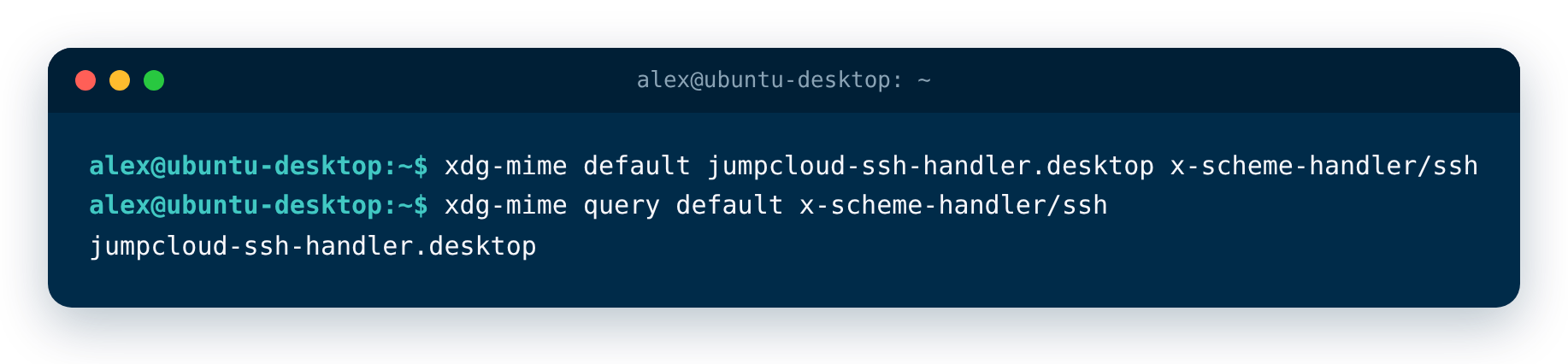
- Register the handler for ssh:// links and check it:
xdg-mime default jumpcloud-ssh-handler.desktop x-scheme-handler/ssh
xdg-mime query default x-scheme-handler/ssh
The second command must print the name of the desktop entry:
jumpcloud-ssh-handler.desktop
Connecting with Direct Access
- Sign in to the JumpCloud User Portal and find the server that you want to access.
- Click the resource card, then select Direct Access.
- If your browser asks for permission to open the link, allow it.
A terminal window opens and starts the SSH connection to the Jump Server.
Approving the Connection
- Open the link in a browser where you are signed in to JumpCloud.
- Check that the code on the page is the same as the code in the terminal.
- Select Approve.
The terminal continues as soon as you approve.
If Direct Access still does nothing, run the second command from step 3 of Setting Up the SSH Link Handler again. It must print jumpcloud-ssh-handler.desktop.
Was this information helpful?