Use RDP Direct Access from a Windows Computer
Direct Access connects you to a Windows server with the RDP app on your own computer instead of the browser. On Windows, that app is the local RDP Client (Remote Desktop Connection).
The User Portal cannot open Remote Desktop Connection by itself. You install a small app on your computer, the RDP Connector, that opens it for you when you select Direct Access. You install it once.
This article is for users who select Direct Access in JumpCloud PAM from a Windows computer.
Before you begin
- A Windows computer where you can run an installer as administrator.
- A Windows server with the RDP protocol in JumpCloud PAM that you have access to.
- Network access from your computer to the Jump Server on the Shell Port. The default is 2222. Your administrator can confirm the port.
Install the RDP Connector
- Download the RDP Connector for Windows.
- Open File Explorer, right-click the downloaded
.exefile, and select Run as administrator.
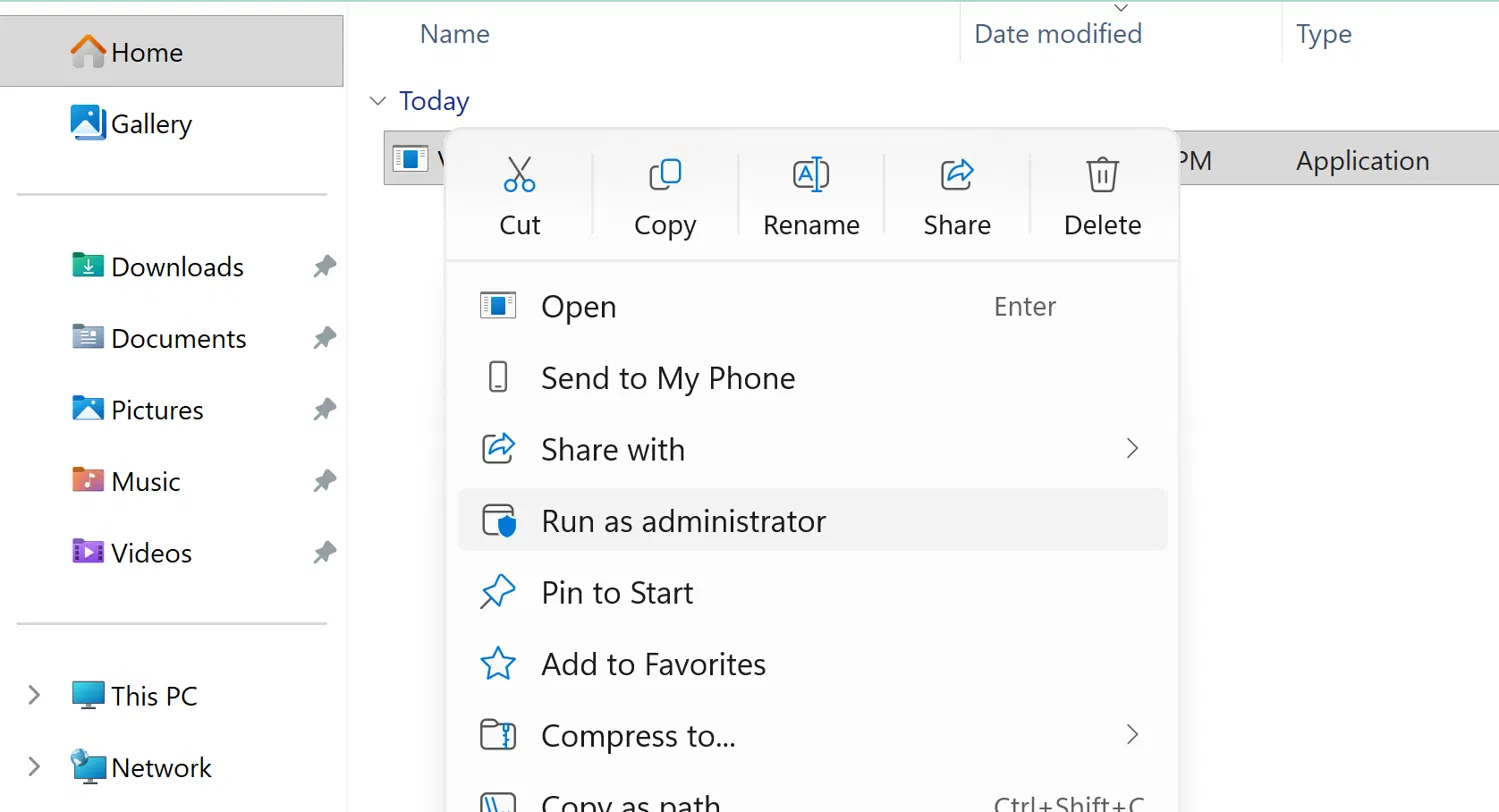
Run the installer as administrator. If you open it with a double-click, the installer cannot register the RDP Connector on your computer, and Direct Access does not work.
- If Windows asks for permission to make changes, select Yes.
- In the terminal window, check that the line
handler registered at, followed by the path of the file, appears. Then press Enter to close the window.
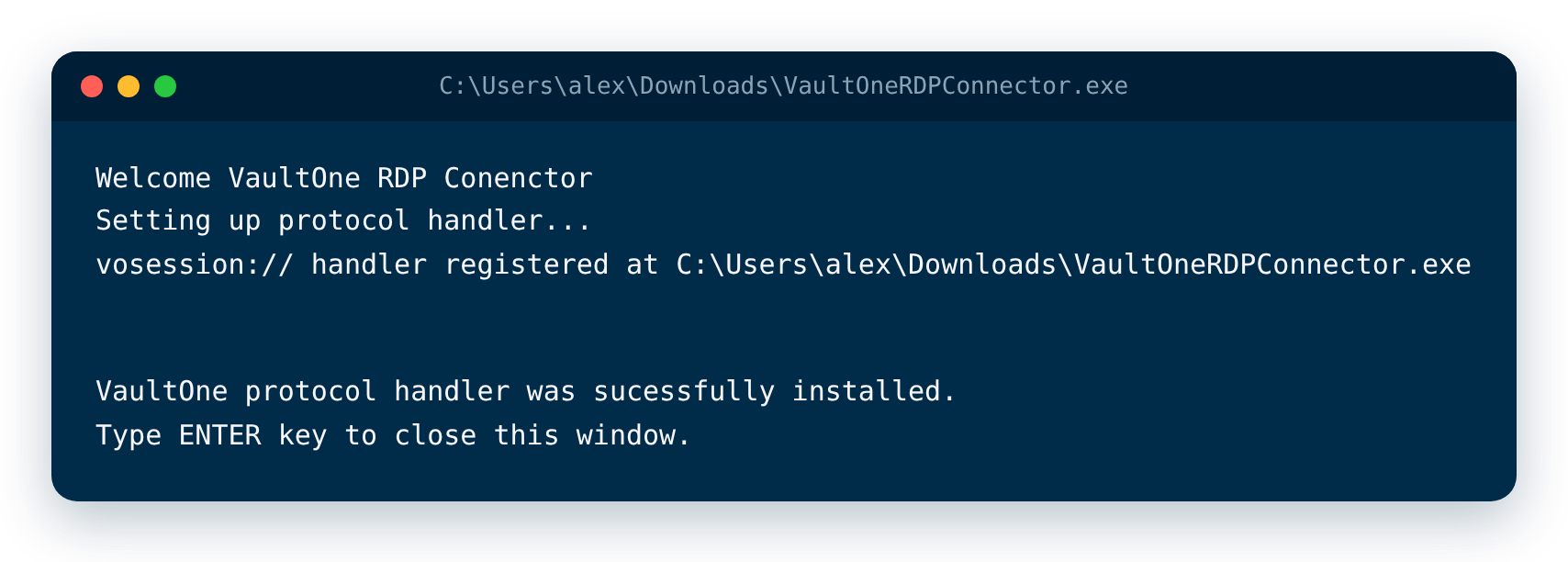
The installer keeps the name VaultOne RDP Connector.
To update the RDP Connector, download the latest installer and run it again as administrator.
If the installer shows an error
If you did not run the installer as administrator, the terminal window shows the line ERROR setting registry. The window can still say that the installation was successful, but the RDP Connector is not registered.
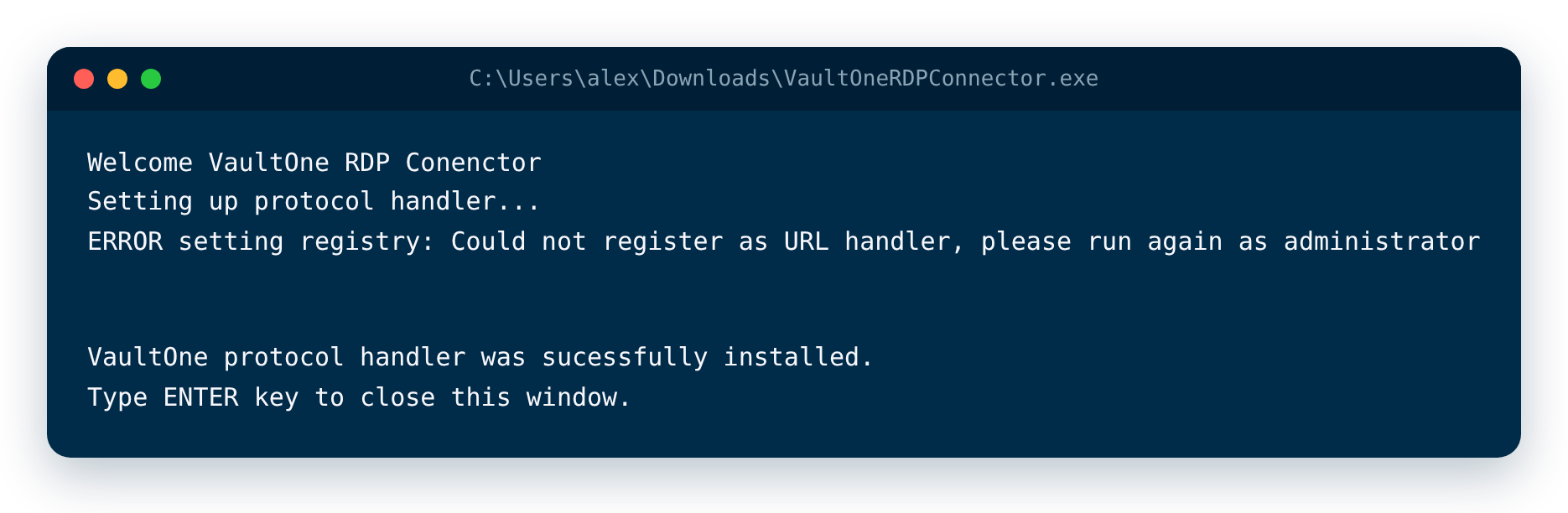
- Press Enter to close the window.
- Right-click the
.exefile again and select Run as administrator. - Check that the line
handler registered atappears this time.
Connect with Direct Access
- Sign in to the JumpCloud User Portal and find the server that you want to access.
- Select Connect.
- In the connection window, check the credential in Credentials, and then select Direct Access.
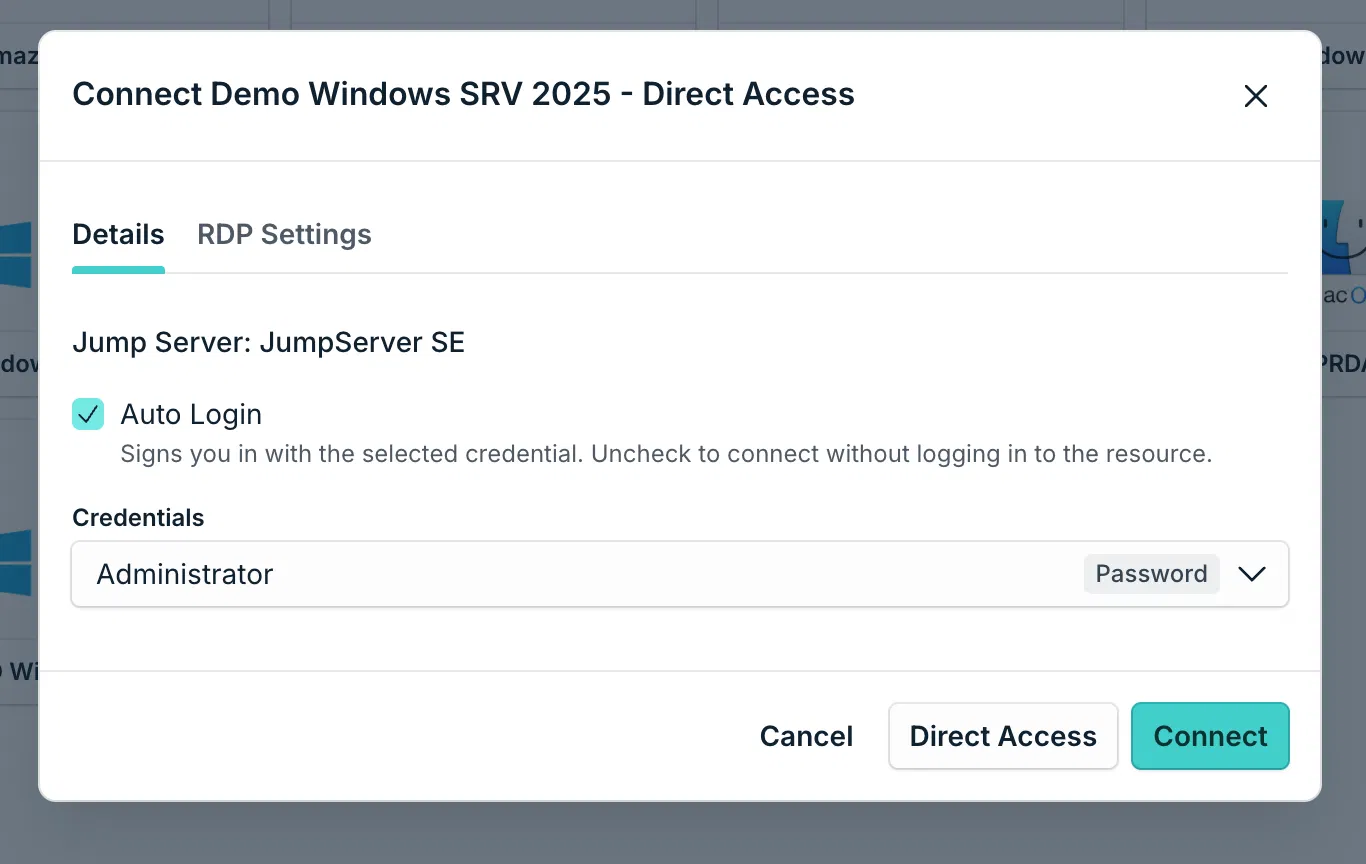
- When your browser asks to open an external application, select Open.
Remote Desktop Connection opens and connects to the server.
Was this information helpful?