Use Direct Access and Multi Monitors with RDP Servers
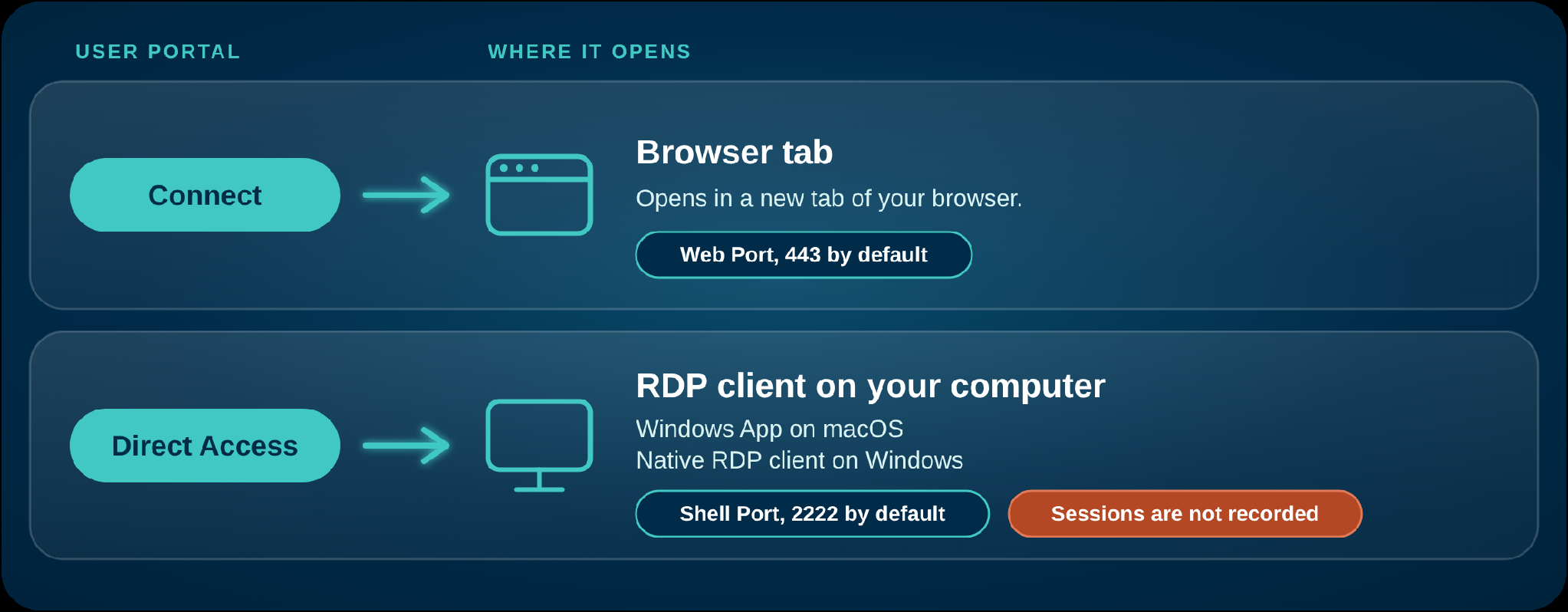
When a user opens a server with the RDP protocol in the User Portal, there are two ways to connect:
For Administrators: Prepare the Server for Direct Access
Direct Access uses the Shell Port of the Jump Server, and PAM does not record these sessions. Check both before you ask users to connect with Direct Access.
Allow Users to Reach the Shell Port
The computer of the user starts the connection to the Jump Server. Make sure that users can send inbound traffic to the Shell Port of the Jump Server. The default Shell Port is 2222. If you chose another Shell Port for the Jump Server, use that one.
Turn Off Video Recording
- In the JumpCloud Admin Portal, go to Access > PAM > Privileged Resources > Servers.
- Click the name of the Windows server.
- In the General card, go to Session Control and clear Record video.
- Save the server.
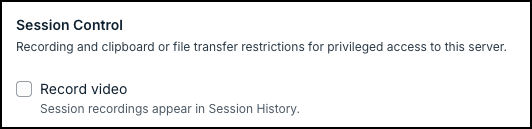
PAM does not record Direct Access sessions to Windows servers. Record video must be cleared for the server. Users who need a recorded session must connect with Connect.
For Users: Connect with Direct Access
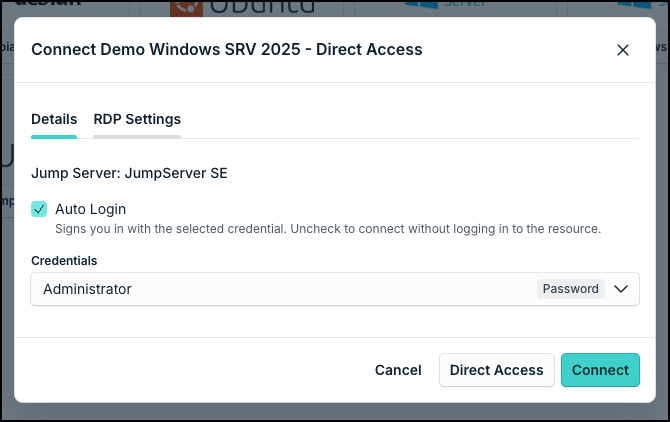
- In the User Portal, go to the Servers tab and click the server. The connection window opens.
- In the Details tab, check the credential in Credentials. With Auto Login selected, PAM signs in with this credential.
- Optional: open the RDP Settings tab and change the settings of the session, such as the keyboard layout and the color depth.
- Click Direct Access. PAM opens the RDP client of your computer and connects to the server.
Use Multi Monitors
Multi Monitors lets the session use more than one monitor of your computer.
- In the connection window, open the RDP Settings tab.
- Select Multi Monitors.
- Optional: select Save new parameters to keep your RDP Settings for future connections to this server. Otherwise, they apply only to this session.
- Click Direct Access.
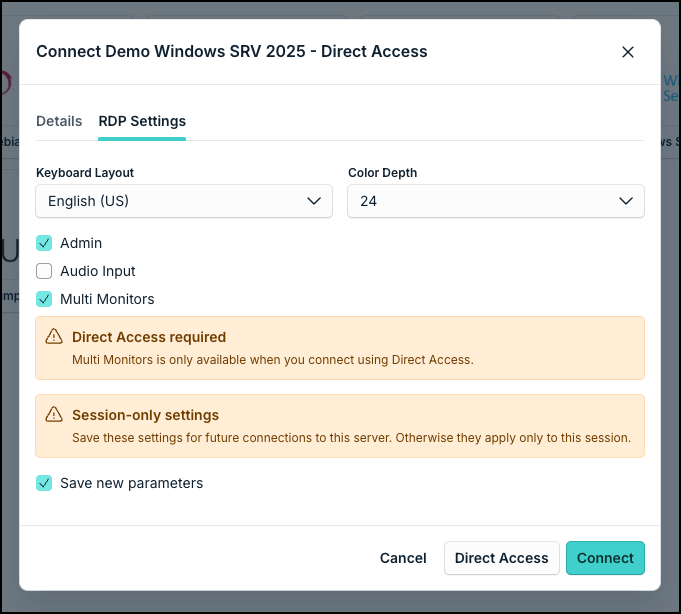
Multi Monitors works only with Direct Access. If you click Connect, the session opens in the browser and does not use Multi Monitors.
Was this information helpful?