Troubleshooting: Jump Server Network Issue
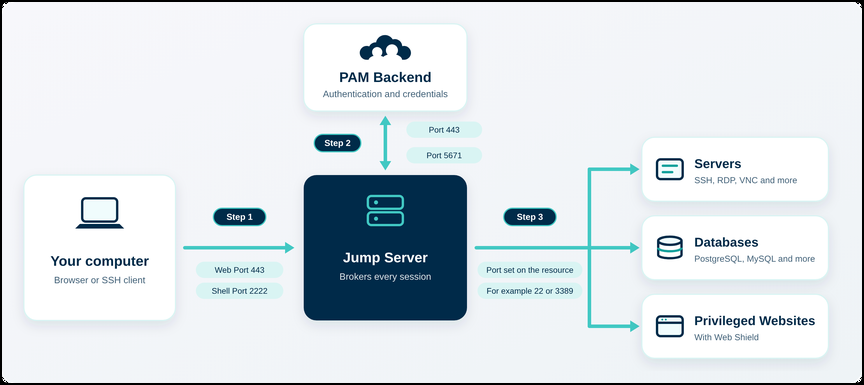
Sessions to servers, databases, and Privileged Websites with Web Shield go through the Jump Server. A session cannot work if the Jump Server is not healthy and cannot communicate in all of these three steps:
- Step 1: from the user's computer to the Jump Server.
- Step 2: between the Jump Server and the PAM Backend, which authenticates users, provides credentials, and sends live commands.
- Step 3: from the Jump Server to the resource.
This article helps you find which step fails and fix it. Privileged Websites without Web Shield do not use the Jump Server, so this article does not apply to them.
Which Step Is Failing?
| What you see | Where to look |
|---|---|
| The session never starts, the Jump Server address does not respond, or Check Connection fails. | Step 1 |
| Actions from the Admin Portal have no effect, for example disconnecting a user from an active session, or the Jump Server cannot be installed or updated. | Step 2 |
| The session reaches the Jump Server, but the resource is unreachable or the connection drops. | Step 3 |
Prerequisites
- You can sign in to the JumpCloud Admin Portal.
- You can open a terminal on the Linux host where the Jump Server is installed.
- You know the address and port of the resource that fails.
Run the Basic Checks
Do these checks first, whichever step fails.
- In the Admin Portal, go to Access > PAM > Jump Servers.
- Confirm that the Status of the Jump Server is Online. If it is Offline or Not Installed, fix that first. See Install PAM Jump Server.
- Note the Web Port (default 443, used by browser sessions) and the Shell Port (default 2222, used by Direct Access over SSH). Both can be changed.
- On the Linux host where the Jump Server is installed, run:
sudo docker ps -a
Five containers must show Up: vo-core, vo-web, vo-sync, vo-bastion, and vo-database.

Step 1. From the User's Computer to the Jump Server
Run these checks from the user's computer, on the network where the user has the problem. Use the Web Port for browser sessions, or the Shell Port for Direct Access over SSH.
1. Run Check Connection
In Access > PAM > Jump Servers, open Install Jump Server from the actions of the Jump Server and click Check Connection. A success message confirms that the Web Port is reachable. If it fails, continue with the next checks.

2. Check the Network Route and Firewall
Confirm that the user is connected to the network or VPN that can reach the Jump Server, and that the firewall or cloud security group of the Jump Server allows incoming connections from the user's network on the Web Port, and on the Shell Port for Direct Access.
3. Check DNS
Browser sessions use the address assigned to the Jump Server, shown in its details in the Admin Portal. It looks like this:
http://nkq2zx7wmp3yh9tc.connect.vault.jumpcloud.com.
From the user's computer, run the command below, replacing the example with the address of your Jump Server:
nslookup <jump_server_address>
Example:
nslookup nkq2zx7wmp3yh9tc.connect.vault.jumpcloud.com
A healthy result returns the IP address of the Jump Server:
Non-authoritative answer:
Name: nkq2zx7wmp3yh9tc.connect.vault.jumpcloud.com
Address: 10.52.17.138
If the address is missing or different, ask your network team to review the DNS configuration.
4. Test the Port
From the user's computer, run one of these commands, using the Web Port or the Shell Port:
telnet 10.52.17.138 443

nc -zv 10.52.17.138 443
| Result | What it means |
|---|---|
| Connected | The port is open. Go to the next check. |
| Connection refused | The computer reached the host, but nothing listens on that port. Check the port number and confirm that vo-web is Up. |
| No answer, or it waits until timeout | A firewall or route is silently dropping the connection. Review check 2. |
| Works with the IP address, fails with the address name | A DNS issue, or a proxy or web filter blocks the address name. Review check 3, and ask your network team to allow the address. |
5. Check the Web Port Response
From the user's computer, run:
curl -v https://nkq2zx7wmp3yh9tc.connect.vault.jumpcloud.com:443
A healthy Jump Server answers with the message below. It is expected, not an error.
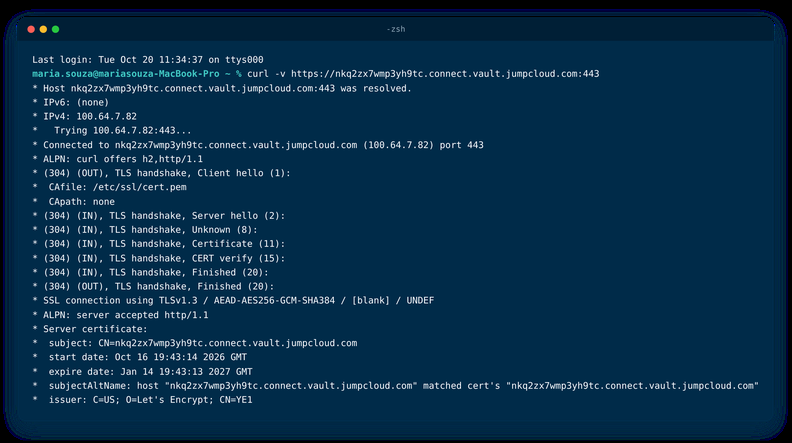
If the TLS handshake hangs or you see certificate errors, a proxy or TLS inspection may be between the user and the Jump Server. Ask your network team to exclude the Jump Server address from inspection.
6. Check for Network Conflicts on the Jump Server Host
If everything above passes but the problem continues, the cause may be on the Linux host where the Jump Server is installed. Two things on this host can block connections: the network range used by Docker overlapping with your company network, and firewall rules changed by other services.
Check the Docker Network Range
Docker assigns a range of IP addresses to the containers on the host. If this range is the same as a network your company uses, connections to that network can be sent to the wrong place.
On the Linux host, run:
docker network inspect bridge
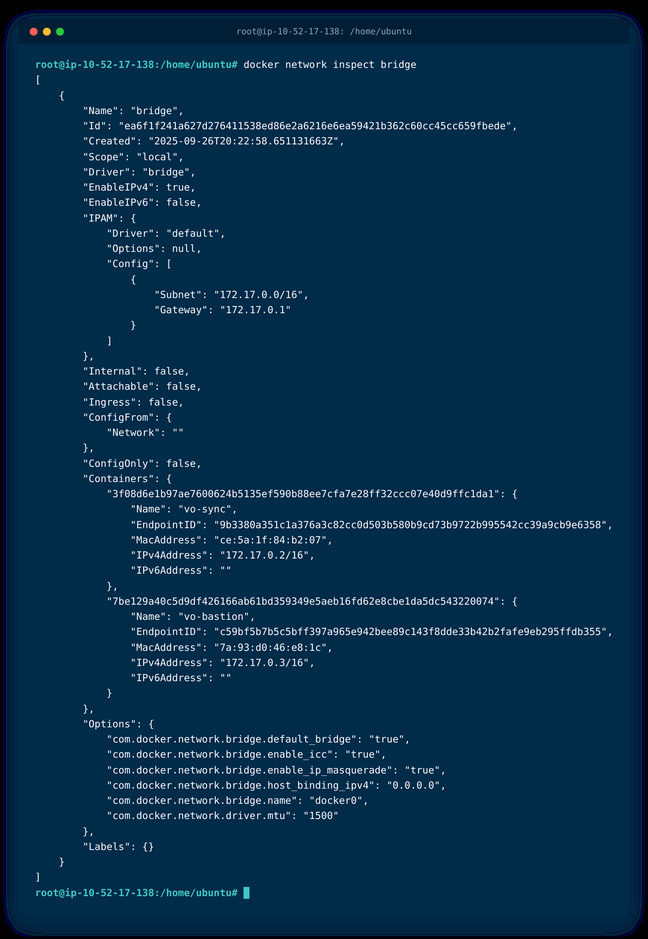
In the result, find the Subnet line under IPAM > Config.
In the example above, the value is 172.17.0.0/16, which means that Docker uses the addresses from 172.17.0.0 to 172.17.255.255 for containers on this host.
Compare this range with the networks your company uses, such as office networks, VPN ranges, and cloud networks:
- If the range is different from all of them, the Docker network is not the cause.
- If the range is the same or overlaps with one of them, you need to reinstall Docker.
Check the Firewall Rules
Check whether another service on this host changes the firewall rules, because those rules can block Jump Server connections.
To review the rules, run one of these commands, depending on the firewall used by the host:
sudo ufw status

sudo iptables -L -n
Step 2. Between the Jump Server and the PAM Backend
The Jump Server connects to the PAM Backend to authenticate users, get resource credentials, receive live commands from the Admin Portal, and upload session recordings.
Run these checks in a terminal on the Linux host where the Jump Server is installed.
1. Run the Connectivity Test
Run:
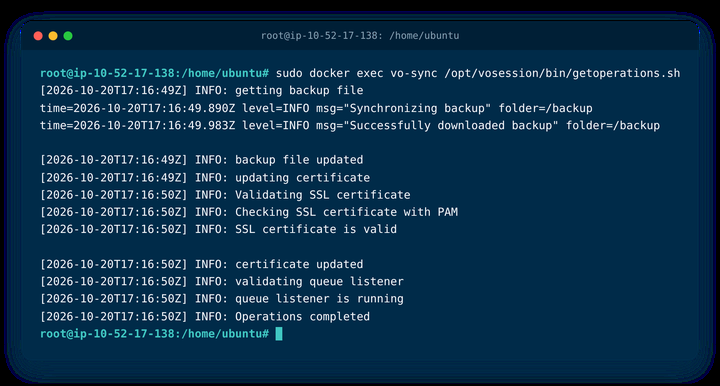
sudo docker exec vo-sync /opt/vosession/bin/getoperations.sh
A healthy result shows that the Jump Server synchronizes its backup, validates its SSL certificate, and confirms that the message queue listener is running. It ends with Operations completed. If the command fails or stops with errors, continue with the next checks.
2. Check the Outbound Rules
The Jump Server starts all these connections, so no inbound rule is needed for it. Confirm that the firewall of the host and of your network allow outbound connections to the addresses below.
Addresses that are the same for all data centers:
| Used for | Address | Port |
|---|---|---|
| Container images to install and update the Jump Server | public.ecr.aws | 443 |
| Delivery of session recordings | *.cloudfront.net | 443 |
| JumpCloud Go browser extension in Web Shield sessions | clients2.google.com | 443 |
Use the column of the data center of your JumpCloud organization:
| Used for | Port | US | EU | India |
|---|---|---|---|---|
| PAM services | 443 | *.vault.jumpcloud.com | *.vault.eu.jumpcloud.com | *.vault.in.jumpcloud.com |
| PAM API | 443 | *.api.vault.jumpcloud.com | *.api.vault.eu.jumpcloud.com | *.api.vault.in.jumpcloud.com |
| PAM application | 443 | *.app.vault.jumpcloud.com | *.app.vault.eu.jumpcloud.com | *.app.vault.in.jumpcloud.com |
| Jump Server address | 443 | *.connect.vault.jumpcloud.com | *.connect.vault.eu.jumpcloud.com | *.connect.vault.in.jumpcloud.com |
| Message queue for live commands | 5671 | *.mq.us-east-1.on.aws | *.mq.eu-central-1.on.aws | *.mq.ap-south-1.on.aws |
| Storage for session recordings | 443 | *.s3.us-east-1.amazonaws.com | *.s3.eu-central-1.amazonaws.com | *.s3.ap-south-1.amazonaws.com |
Allowing only outbound port 443 is not enough. If port 5671 is blocked, the Jump Server can install, show as Online, and open sessions, but live commands from the Admin Portal, such as disconnecting a user from an active session, have no effect.
Step 3. From the Jump Server to the Resource
Run these checks in a terminal on the Linux host where the Jump Server is installed, not on the user's computer. Use the address and port registered for the resource in Access > PAM > Privileged Resources.
Default ports by resource type:
| Resource | Protocol or provider | Default port |
|---|---|---|
| Servers | SSH, RDP, VNC, Telnet, Kubernetes | 22, 3389, 5900, 23, 6443 |
| Privileged Websites with Web Shield | HTTPS, HTTP | 443, 80 |
| Databases | PostgreSQL, MySQL, MariaDB, SQL Server, Oracle | 5432, 3306, 3306, 1433, 1521 |
| Databases | Firebird, DB2 (LUW), DB2 (iSeries), ClickHouse, Apache Kyuubi | 3050, 50000, 446, 8123, 10009 |
Each resource can use a custom port. Always test the port configured for that resource.
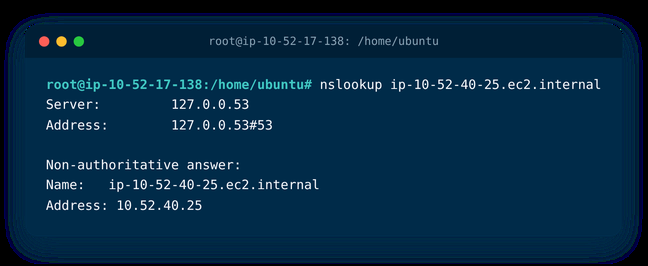
1. Check DNS from the Jump Server Host
If the resource uses a hostname, confirm that the Jump Server host can resolve it. This uses the DNS of the host, not the DNS of the user's computer.
Run:
nslookup ip-10--40-25.ec2.internal
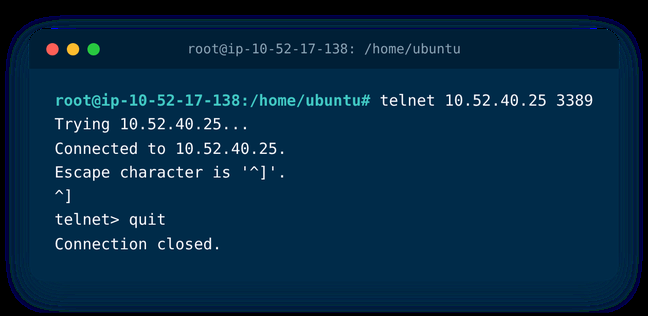
2. Test the Port
Run:
telnet 10.52.40.25 3389
3. Check the Firewalls
This is the most common cause. Confirm that connections are allowed between the Jump Server and the resource, in both directions, on the port of the resource. Check:
- Cloud security groups, for example in AWS, Azure, or Google Cloud.
- The firewall of the resource itself, which must accept connections from the IP address of the Jump Server.
- Network firewalls and ACLs, including DMZ or other segments between the Jump Server and the resource.
- The outbound rules of the Jump Server host. Each port needs its own rule, so a protocol can work for one resource and be blocked for another.
- The service on the resource is running and listening on that port.
Was this information helpful?