Troubleshoot: Error While Loading Password Manager Settings in Admin Console
Important
Legacy Password Manager is in maintenance mode and receives critical fixes only. New features ship in Password Vault. Both run side by side during migration, and we'll give advance notice before the legacy product is retired. See the Migration FAQ for details.
Symptoms
When an Admin is setting up JumpCloud Password Manager for a new tenant, they may encounter the following error message in Settings.
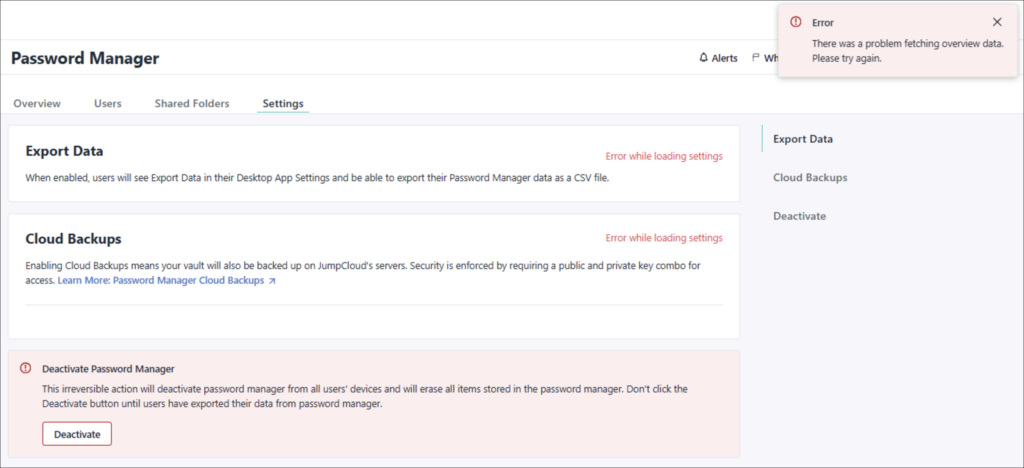
Cause
This may be caused by a database error.
Resolution
This can be resolved by completely deactivating and re-activating the password manager for the tenant. To fix this, follow these steps:
- Delete the cloud backup key using the following API:
curl --request DELETE \
--url https://console.jumpcloud.com/api/v2/passwordmanager/backup/keys/{UUID} \
--header 'x-api-key: REPLACE_KEY_VALUE'
- Replace the values in the above API and run it. To fetch the UUID, run the following API:
curl --request GET \
--url 'https://console.jumpcloud.com/api/v2/passwordmanager/backup/keys' \
--header 'x-api-key: REPLACE_KEY_VALUE'
- After you delete the cloud backup key, deactivate the Password Manager completely using the following API:
curl --request DELETE \
--url https://console.jumpcloud.com/api/v2/passwordmanager \
--header 'x-api-key: REPLACE_KEY_VALUE'
- After the password manager is deactivated, refresh the admin console and try to set it up again for your account.
Was this information helpful?