Retrieve JumpCloud Log Files
Use this article to find the locations, available actions, and contents captured in the various logs for JumpCloud services across operating systems.
Windows
Active Directory Integration
- AD Import Location:
- C:\Program Files\JumpCloud\AD Integration\JumpCloud AD Import\JumpCloud_AD_Import_Grpc
- C:\Windows\temp\JumpCloud_AD_Integration.log
- AD Sync Location:
- Note: Log names & locations vary depending on the version of AD Sync in use.
- Version 4.3.1 and older: C:\Program Files\JumpCloud\AD Sync\adsync.log
- Version 4.3.2 and newer: C:\Program Files\JumpCloud\AD Integration\JumpCloud AD Sync\JumpCloud_AD_Sync.log
- Note: Log names & locations vary depending on the version of AD Sync in use.
- To enable DEBUG, see Enable Debug Logging for the Active Directory Integration.
Device Agent
The device Agent log includes details on all agent-driven, device-wide actions (Identity Management, device connection maintenance with the JumpCloud service, command execution, Agent upgrades, and policy deployment, for example).
- Location: C:\Windows\Temp\jcagent.log
- To enable DEBUG, see Set the Log Level to Debug.
Password Manager & Browser Extension
Password manager logs exist in two distinct locations:
-
C:\Users[Your User name]\Appdata\Roaming\JumpCloud Password Manager\logs - contains application logs related to password manager software update events, and any errors when the application fails to present a UI element.
-
C:\Users[Your User name]\Appdata\Roaming\JumpCloud Password Manager\data\daemon\log - Contains logs detailing user actions, backups, and other events.
For the browser extension:
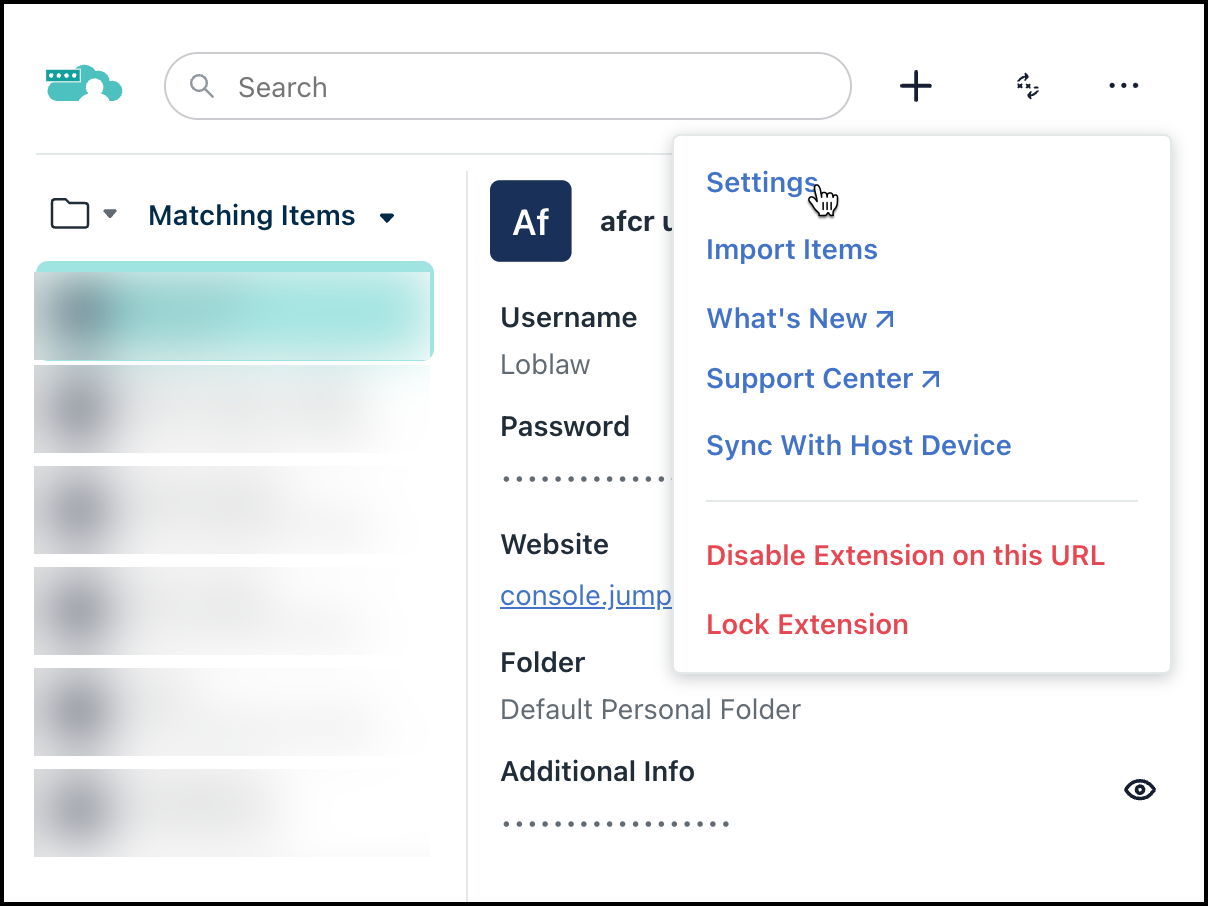
- In the top-right corner, click the three dots (More) menu, then click Settings.
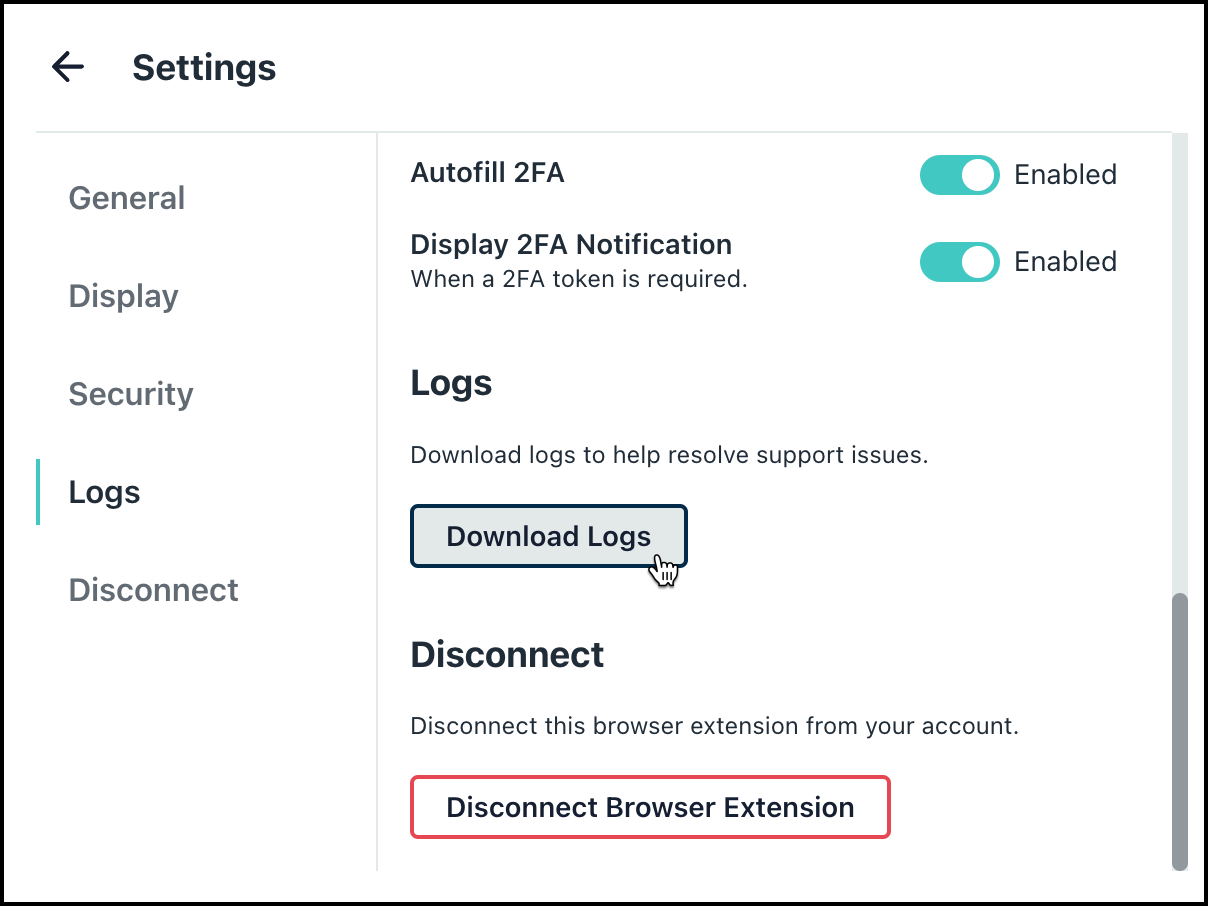
- Click the Logs tab, then click Download Logs.
Remote Assist
Retrieve user-centric, per-day session logs for the JumpCloud Remote Assist service and client:
- Location: C:\Windows\system32\config\systemprofile\AppData\Roaming\JumpCloud-Remote-Assist\logs{{YYYY-MM-DD}}.log
Windows MDM
Retrieve MDM application install logs:
- Location: C:\Windows\System32\config\systemprofile\AppData\Local\mdm
macOS
Device Agent
The device Agent log includes detail on all agent-driven, device-wide actions (Identity Management, device connection maintenance with the JumpCloud service, command execution, Agent upgrades, and non-MDM-driven policy deployment, for example.)
- Location: /var/log/jcagent.log
- Both pre- and post-installation logs are located within the /var/log/ directory. These files are especially useful when troubleshooting installation problems when attempting to script a silent installation from a third-party management service.
- To enable DEBUG, see Set the Log Level to Debug.
JumpCloud Go
JumpCloud Go is located in the unified system logs on macOS. To surface these, use the macOS command line to filter. For example:
sudo log stream --level debug --predicate 'subsystem contains "jumpcloud"'
JumpCloud Menu Bar App
Most frequently referenced for user password confirmations and updates.
- Location: ~/Library/Logs/JumpCloud/com.jumpcloud.jcagent-tray {{YYYY-MM-DD}}--##-##...log
Filter out the application launch entries to more easily surface password events:
grep -i password Library/Logs/JumpCloud/com.jumpcloud.jcagent-tray*
Password Manager
Retrieve user-centric logs for the JumpCloud Password Manager service and application from following paths:
-
~/Library/Logs/JumpCloud Password Manager - contains application logs related to password manager software update events, and any errors when the application fails to present a UI element.
-
~/Library/Application Support/JumpCloud Password Manager/data/daemon/log - contains logs detailing user actions, backups, and other events.
For the browser extension:
- In the top-right corner, click the three dots (More) menu, then click Settings.
- Click the Logs tab, then click Download Logs.
Patch Management
The jc_notifications.log file contains telemetry and logic driving the Nudge application notifications and is helpful for troubleshooting.
- Location: /private/var/log/jc_notifications.log
To retrieve a list of available and deferred updates for the current device (deferred updates are hidden from the Software Update preference pane):
softwareupdate --list
defaults read /Library/Preferences/com.apple.SoftwareUpdate
To display what Nudge sees as an available update:
defaults read com.github.macadmins.Nudge.plist
sudo cat /Library/Preferences/com.jumpcloud.Nudge.json
Remote Assist
Retrieve user-centric, per-day session logs for the JumpCloud Remote Assist service and client:
- Session logs Location: ~/Library/Logs/JumpCloud Remote Assist/
- Note: root sessions are recorded in /var/root/Library/Logs/JumpCloud Remote Assist/
User Agent
The user session agent includes detail for device trust keychain deployment and approved application list.
- Location: ~/Library/Logs/JumpCloud/jc-user-agent.log
Enabling debug will expose successful and unsuccessful application list updates:
echo "DEBUG" > /opt/jc_user_ro/loglevel.cache
Linux
Device Agent
The device Agent log includes details on all agent-driven, device-wide actions (Identity Management, device connection maintenance with the JumpCloud service, command execution, Agent upgrades, and policy deployment, for example).
- Location: /var/log/jcagent.log
To enable debug/trace:
echo "DEBUG" > /opt/jc/loglevel.cache

To restart the Agent (required) after adjusting the log verbosity:
service jcagent restart
Password Manager
Password manager logs exist in two distinct locations:
-
~/.config/JumpCloud Password Manager/logs/ - contains application logs related to password manager software update events, and any errors when the application fails to present a UI element.
-
~/.config/JumpCloud Password Manager/data/daemon/log/ - contains logs detailing user actions, backups, and other events.
Remote Assist
Retrieve user-centric, per-day session logs for the JumpCloud Remote Assist service and client:
- Location: ~/.config/JumpCloud-Remote-Assist/logs/jc-assist_{{YYYY-MM-DD}}.log
Was this information helpful?