Restoring JumpCloud Protect® Data on iOS and iPadOS Devices
JumpCloud Protect on iOS and iPadOS devices support backing up authentication data using Apple's backup methods. Transferring data from your old device to a new one requires backing up the old device and restoring the backup on the new device. This process includes TOTP secrets, but Push accounts require re-enrollment after the restore.
If you set up your new device without restoring from a backup, the Protect app will not have any of the existing data from the old device.
Considerations
- On iOS and iPadOS devices, JumpCloud Protect supports transfer of TOTP secrets but does not support transfer of Push secrets.
- On Android devices, JumpCloud Protect doesn’t support transfer of either Push or TOTP secrets. Support for this is coming soon.
Backing Up and Restoring Your Data
To transfer your JumpCloud Protect data to a new iOS or iPadOS device, use Apple's standard backup and restore process:
- Back up your old device. See Backup your iPhone in Apple’s support documentation to learn more.
- Restore a backup to the new iOS and iPadOS device. See Restoring backup in Apple’s support documentation to learn more.
Transferring Protect Secrets to New Devices
Protect TOTP secrets are also included if you use Apple's transfer feature on the new device. See Apple’s support documentation to learn more:
- Use Quick Start to transfer data to a new iPhone or iPad
- Transfer data to a new iPhone using a wired connection
Re-Enrolling Push Accounts
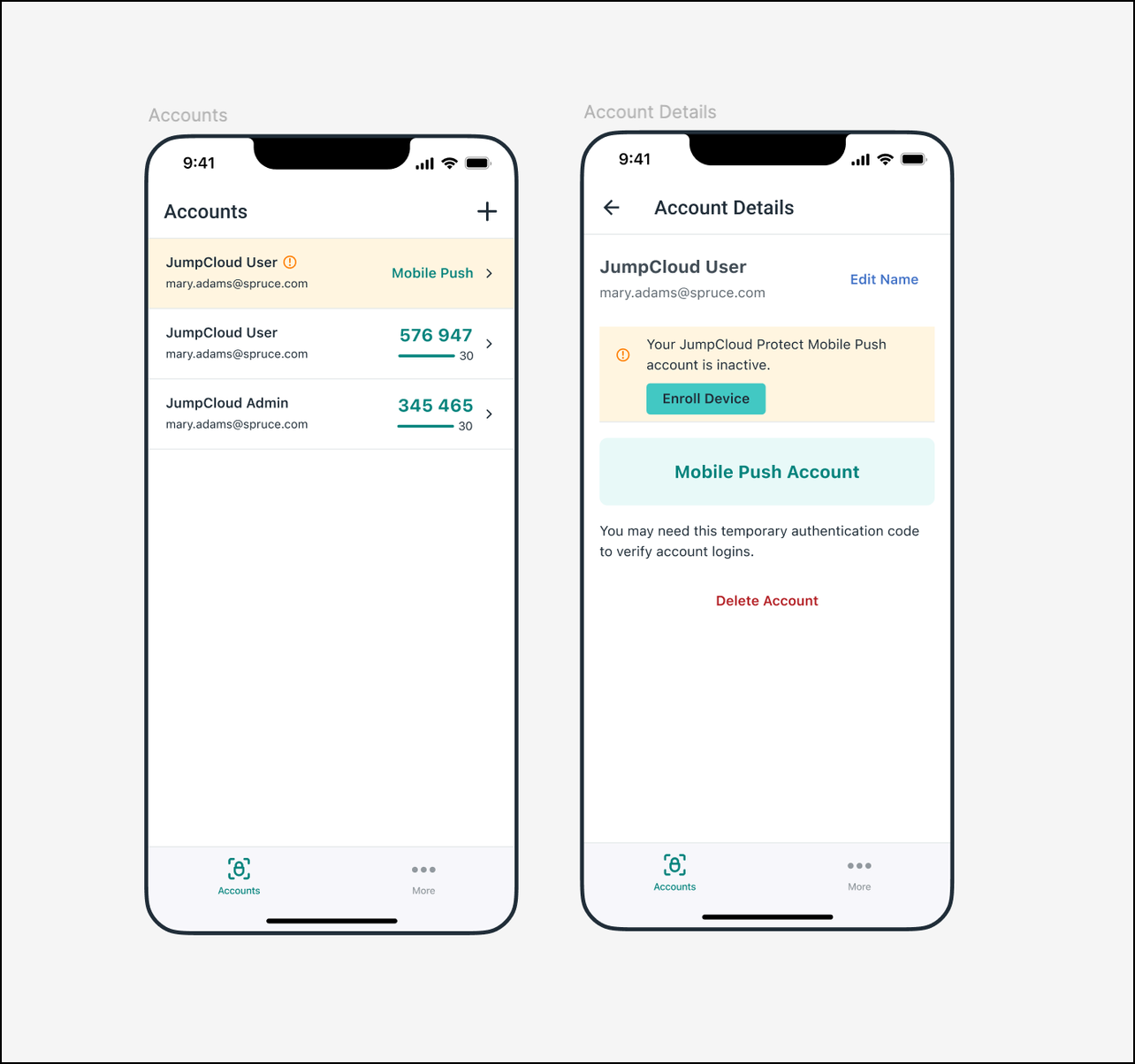
You can re-enroll their Push accounts on the new iOS and iPadOS devices after restoring from a backup.
To re-enroll Push accounts:
- Open the JumpCloud Protect app.
- Select the account.
- Click Enroll Device.
Was this information helpful?