Monitor and Disconnect Active Sessions
In JumpCloud Privileged Access Management (PAM), you can see who is connected to your privileged resources, watch what a user does in real time, and disconnect the user. This works for servers, databases, and Privileged Websites with Web Shield. You can start from a resource or from a Jump Server.
Privileged Websites without Web Shield do not support live sessions.
Prerequisites
- Recording enabled for the resource. You can watch a live session only when the session is recorded.
- A user connected to the resource.
Finding the Active Sessions of a Resource
- Log in to the JumpCloud Admin Portal.
- Go to Access > PAM > Privileged Resources.
- Open the Servers, Databases, or Privileged Websites tab.
- In the Status column, find the resources marked In use. These have a user connected.
- In the Actions column, click View Active Sessions.

The page lists all the users connected to the resource, with the credential that each one is using and the start date of the session.
The View all button opens Session History already filtered by this resource, so you can see past sessions.
Watching a Live Session
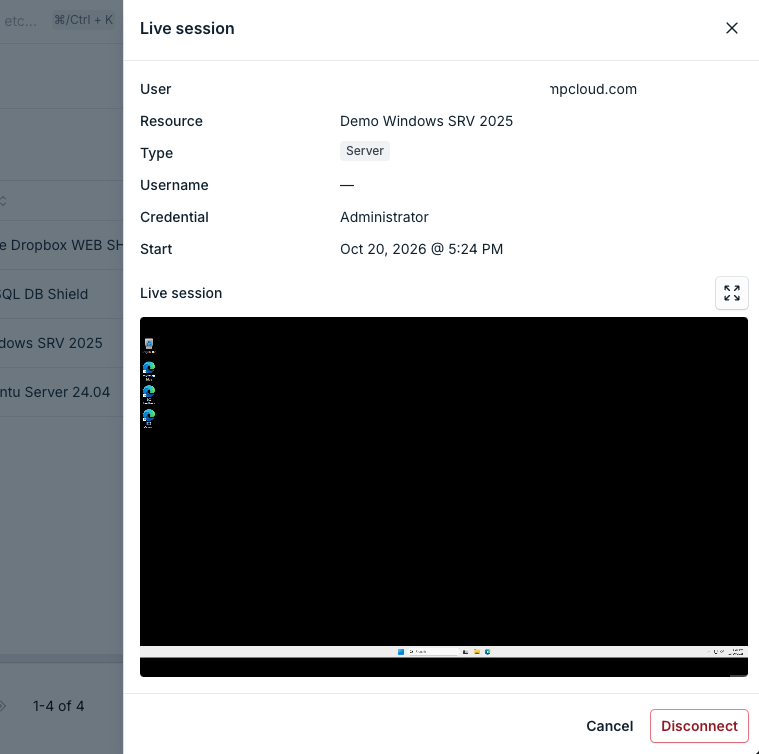
- In the list of active sessions, click the eye icon or the row of the session. A panel opens with the details of the session and the Live session.
- (Optional) To see the session better, click the full screen button. JumpCloud recommends this.
- To go back, exit full screen. You can disconnect the user from the panel.
Disconnecting Users
- Click Disconnect in the Live session panel, or click the power icon in the Actions column of the session.
- Choose what to do after the disconnection:
- Only disconnect: the user is disconnected and can connect again.
- Lock out access to resource by: the user is disconnected and cannot connect to this resource for 5, 15, 30, or 60 minutes.
- Confirm. PAM shows a message that the sessions were disconnected.
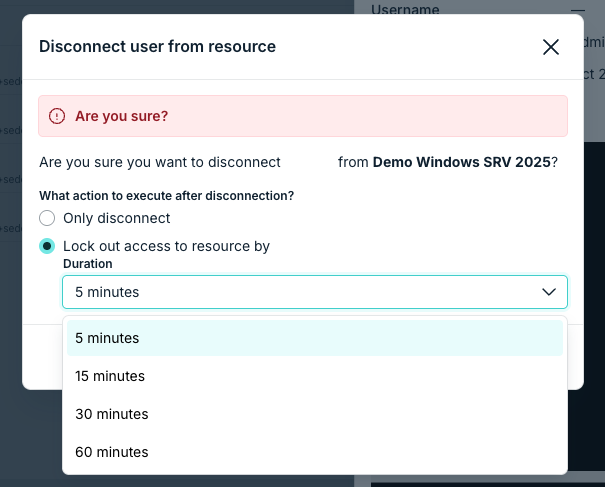
If a locked out user tries to connect, the User Portal shows that the Admin blocked the access. The user must wait until the lockout ends.
Disconnecting Several Users at Once
To disconnect several users at once, select their sessions with the checkboxes and use the disconnect action. The options are the same, and they apply to all the selected sessions.
Viewing the Active Sessions of a Jump Server
Servers, databases, and Privileged Websites with Web Shield connect through a Jump Server. From the Jump Server, you see all the active sessions at once, whatever the type of resource.
- Go to Access > PAM > Jump Servers.
- In the Actions column of the Jump Server, click View Active Sessions.
The list shows the user, the resource, the type of resource, the credential, and the start date of each session. You can watch a live session and disconnect users in the same way as from a resource, including several users at once.
Auditing These Actions
PAM records the actions of Admins in Directory Insights. Go to Insights > Directory Insights and filter by event type:
pam_watch_live_session: an Admin watched a live session.pam_force_disconnect: an Admin disconnected a user.
Was this information helpful?