MDM Commands
Mobile Device Management (MDM) commands let you remotely execute certain management commands on devices that use MDM. These commands help you remotely control macOS, iOS, and iPadOS devices. Admins with the requisite permission level can run these MDM commands from the JumpCloud Admin Portal:
| Command | macOS Device Enrollment (supported for all enrollment types) | Device-Enrolled iOS/iPadOS (Corporate devices) | User-Enrolled iOS/iPadOS (Personal devices) |
|---|---|---|---|
| Lock | ✔ | ✔ | ✔ |
| Restart | ✔ | Not supported | Not supported |
| Shut down | ✔ | Not supported | Not supported |
| Erase | ✔ | ✔ | Not supported |
| Unenroll device | Supported only via API | Supported only via API | ✔ |
| Delete Device Passcode | N/A | ✔ | Not supported |
| Enable Lost Mode | N/A | ✔ | Not supported |
| Delete Screen Time Passcode | N/A | ✔ | Not supported |
Occasionally, some devices running older versions of macOS will fail to erase. If the device cannot be erased, it will be locked.
Prerequisites:
- MDM is configured for your organization.
- See Set up Apple MDM.
- Admins require command running permissions to run MDM Commands.
- See Admin Portal Roles for more information.
Considerations:
- Ensure you have appropriate JumpCloud Administrator permissions and that your Apple Push Notification service (APNs) certificate is up to date before running MDM commands, or you'll receive the following error: "You don’t have permissions to make this change. If this is an error, contact your admin."
- See Renewing Your MDM Certificate to learn more.
- MDM commands appear in Directory Insights under the event type mdm_command_result. The specific command is detailed in the request_type field, such as clear_passcode.
Verify a Device Can Be Managed Using MDM Commands
Before proceeding, verify that a device can be managed using MDM commands:
- Log in to the JumpCloud Admin Portal.
If your data is stored outside of the US, check which login URL you should be using depending on your region. If your organization uses LDAP, RADIUS, or requires firewall allow list configuration, the Fully Qualified Domain Names (FQDNs) will also be region specific. See JumpCloud Data Centers for the URLs, FQDNs, and IP addresses.
- Go to Device Management > Devices.
- Select the Devices tab, select the device, then select the MDM tab.
- Verify that this device is enrolled in MDM.
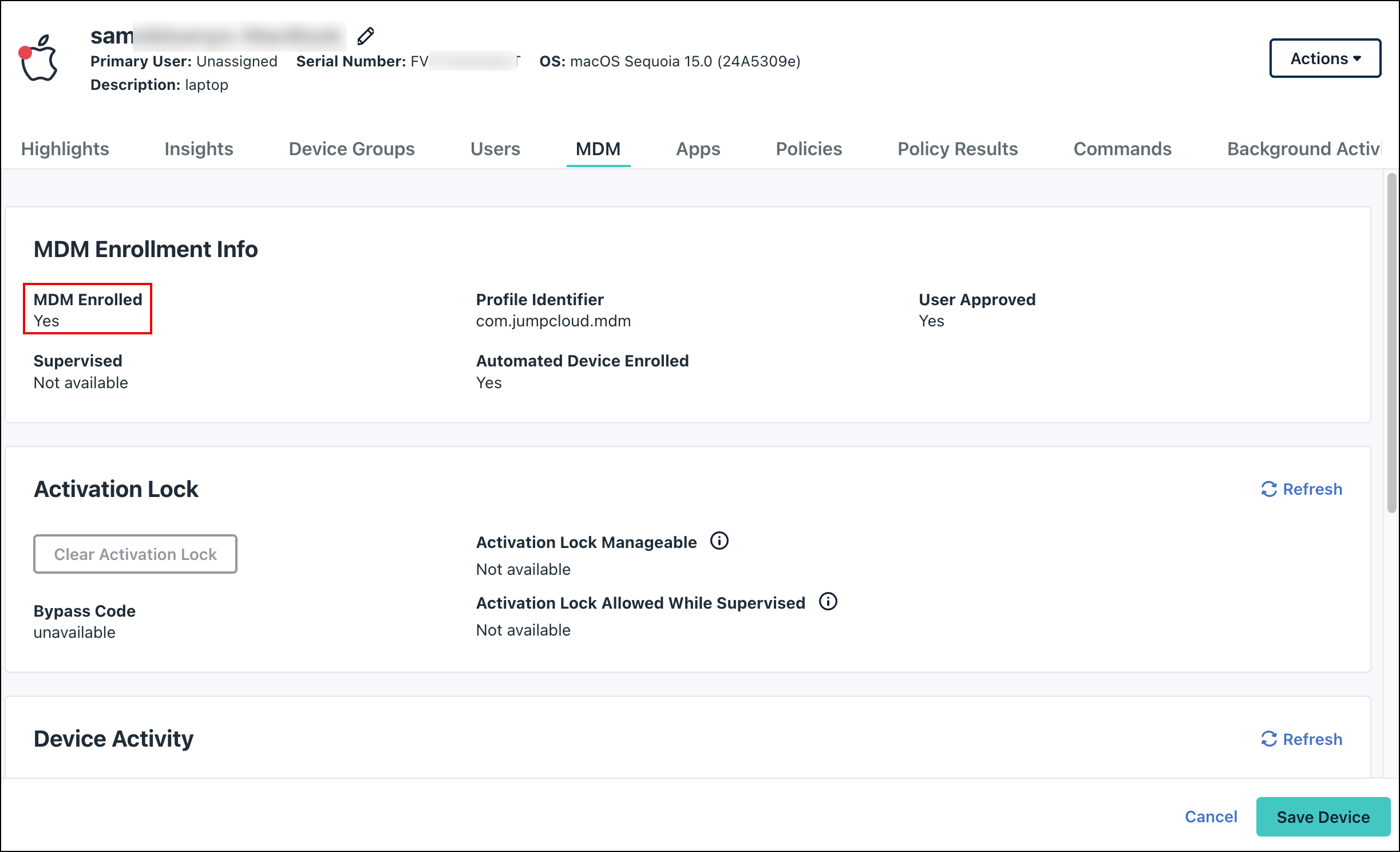
You can filter the devices list to show only the devices that are enrolled in MDM by clicking filter by and selecting MDM status - enrolled with JumpCloud.
Lock a Mac
When you lock a Mac, JumpCloud automatically generates a PIN and stores it in the Admin Portal. The Mac remains locked until the user enters the PIN.
Prerequisites:
- The Mac must have a recovery volume.
To remotely lock a lost Mac:
- From the JumpCloud Admin Portal, go to Device Management > Devices.
- Select the Devices tab, then find the Mac.
- In the device row, click Actions > Lock Device. Alternatively, you can enter the device details and click Actions > Lock Device.
Lock Device will be inaccessible if the Mac is already locked.
- In the Lock Device dialog box, complete the following fields:
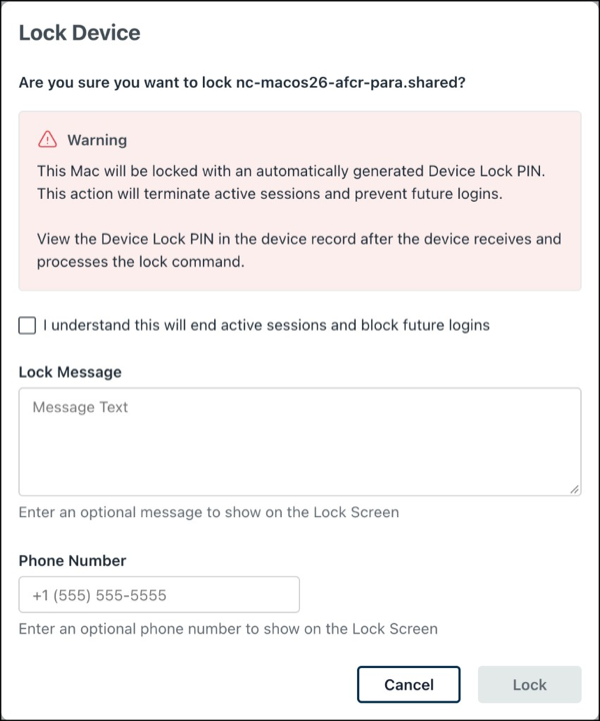
- Review the warning and select I understand this will end active sessions and block future logins.
- (Optional) Enter a Lock Message to be displayed on the Lock Screen after it is locked.
- (Optional) Enter a Phone Number to be displayed on the Lock Screen after it is locked. This can be the IT or Help Desk number to direct users to contact for help or clarification.
- Click Lock to send the lock command to the device.
- If the command is successful, the Mac immediately locks and displays a screen to enter the PIN to unlock it. It may take a few minutes for the device status to change in the Admin Portal.
To access the device lock PIN:
- From the JumpCloud Admin Portal, go to Device Management > Devices.
- In the Devices list, select the desired Mac.
- In the Highlights tab, under Device Lock, click View PIN.
- You can track lock state for Mac computers in the Devices list. Click Edit Columns, search for macOS Lock Status, and add the column. Values include Locked and Unlocked.
- macOS Lock Status is available only for macOS.
Restart a Mac
Send the restart command to immediately restart the device. Any unsaved work on the device is lost. If the device restarts quickly, the device’s status in the JumpCloud Admin Portal might not change.
- From the JumpCloud Admin Portal, go to Device Management > Devices.
- Select the Devices tab, then find the Mac.
- In the device row, click Actions > Restart Device.
- In the Restart This Device dialog box, click yes, restart.
Shut Down a Mac
Send the shut down command to immediately shut down the device. Any unsaved work on the device is lost. If the device restarts quickly, the device’s status in the JumpCloud Admin Portal might not change.
- From the JumpCloud Admin Portal, go to Device Management > Devices.
- Select the Devices tab, then find the Mac.
- In the device row, click Actions > Shut Down.
- In the Shut Down This Device dialog box, click yes, shut down.
Erase a Mac
Send the erase command to immediately erase the hard drive on the Mac, even if the device is locked. Everything on the hard drive, including macOS software, is removed. The user is not warned of this action. See Apple's Developer Documentation.
- In macOS 12 Monterey and later, the erase command uses Erase All Content and Settings (EACS) on Mac computers with Apple silicon or with the Apple T2 Security Chip. EACS removes all user data and lets you quickly restore a Mac to the Setup Assistant. If EACS can’t run on a macOS 12+ device, the device falls back on Apple’s obliteration behavior (macOS Big Sur 11 and prior).
- Mac computers with Apple silicon don't prompt for a PIN after issuing the erase command, whereas Intel-based Mac computers do. To enable a PIN on a Mac with Apple silicon, first issue the lock command followed by the erase command. Once the device is unlocked using the PIN set during the lock command, the device receives the erase command and erases as expected.
- See Understand the Erase Device MDM Command to learn more.
- From the JumpCloud Admin Portal, go to Device Management > Devices.
- Select the Devices tab, then select the device.
- From the device page, click Actions > Erase Device.
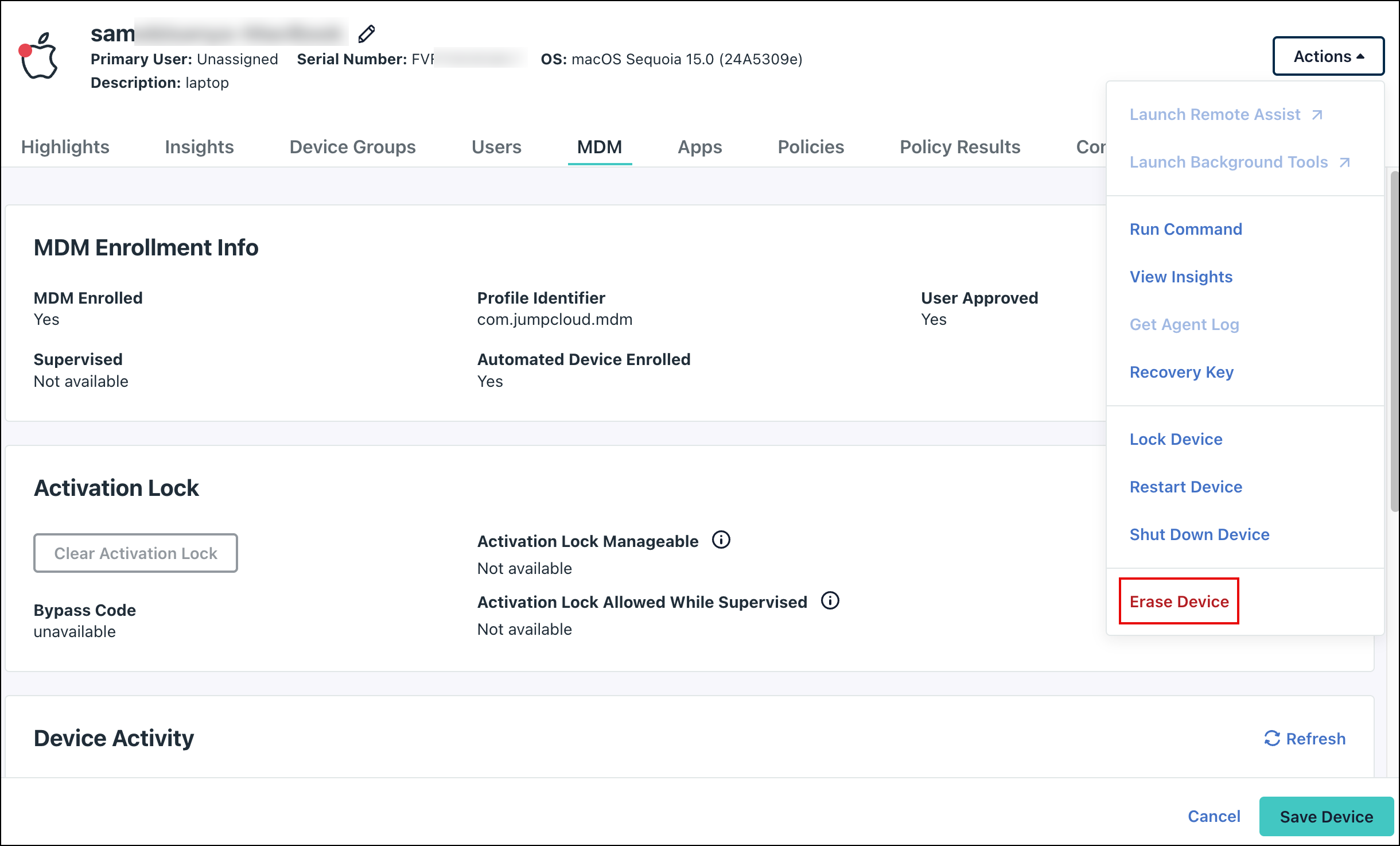
- In the Erase This Device dialog box, enter or paste in a six-digit PIN. Use a number that’s easy to remember, or save it in a safe place, as JumpCloud does not save this information.
- Click yes, erase. If an error displays when you run the erase command on a Monterey device, the device still erases (which conforms with Apple's Big Sur obliteration behavior).
Lock an iOS or iPadOS Device
When you remotely lock a lost iOS or iPadOS device, the device remains locked until the user enters the device passcode. When locking iOS or iPadOS devices, JumpCloud doesn’t generate a PIN. Instead, the device is locked using the existing passcode.
Prerequisites:
- The device must have a passcode to send the Device Lock command. See Create iOS Passcode Restrictions Policy to learn how to enforce a passcode on iOS and iPadOS devices.
To lock an iOS or iPadOS device:
- From the JumpCloud Admin Portal, go to Device Management > Devices.
- Select the Devices tab, then click the iOS or iPadOS device.
- Go to Actions > Lock Device.
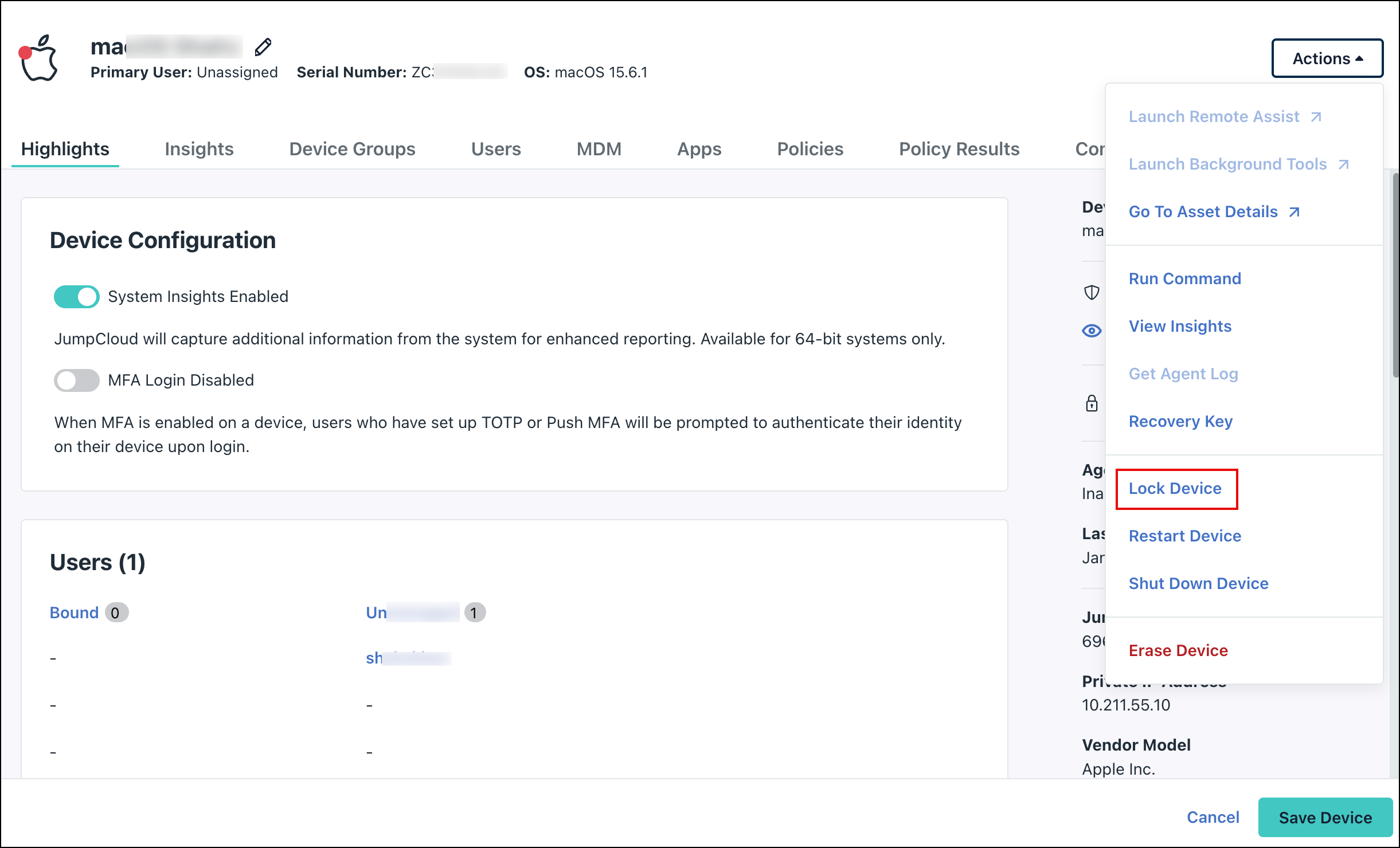
Lock Device will be inaccessible for 5 minutes after sending a lock command, or if the device is already locked.
- In the Lock Device dialog box, complete the following fields:
- (Optional) Enter a Lock Message to be displayed on the Lock Screen after it is locked.
- (Optional) Enter a Phone Number to be displayed on the Lock Screen after it is locked. This can be the IT or Help Desk number to direct users to contact for help or clarification.
- Click Lock to send the lock command to the device.
- After locking a device, a banner appears in the device record with the command status for 5 minutes. The device remains locked after you dismiss the banner.
- The Devices list does not include a lock status column for iOS or iPadOS devices. Due to platform limitations, JumpCloud does not have visibility into the lock status after the command is sent.
- Users have a variety of ways to lock their iPhone or iPad and should consult Apple documentation.
Erase a Corporate-Owned iOS or iPadOS Device
Send the erase command to immediately remove all data from a corporate-owned device, even if the device is locked. The user is not warned of this action. The user can't access this device until you unlock it and complete the setup. For more information on remote wipe, see Apple’s documentation.
- From the JumpCloud Admin Portal, go to Device Management > Devices.
- Select the Devices tab, then select the iOS or iPadOS device.
- From the device page, click Actions > Erase Device.
- In the Erase This Device dialog box, click yes, erase.
If you prefer to remove just the individual profile for iOS or iPadOS, you can remotely unenroll the device through the API and all the other profiles will leave with it. If the profile was installed through a policy, unbinding the policy from the device uninstalls the profile.
Unenroll a Personal iOS or iPadOS Device
Removing an iOS or iPadOS device from MDM enrollment can only be done for personal devices. The user is not warned of this action. The device will be unenrolled from MDM and all of the data and apps allowed by MDM will be removed when the partition is deleted. You cannot unenroll a corporate device through the Admin Portal; that can be done only through the API.
- From the JumpCloud Admin Portal, go to Device Management > Devices.
- Select the Devices tab, then select the iOS or iPadOS device.
- From the Actions menu, click Unenroll Device to remove a user-enrolled iOS or iPadOS device from MDM.
- Click yes, unenroll.
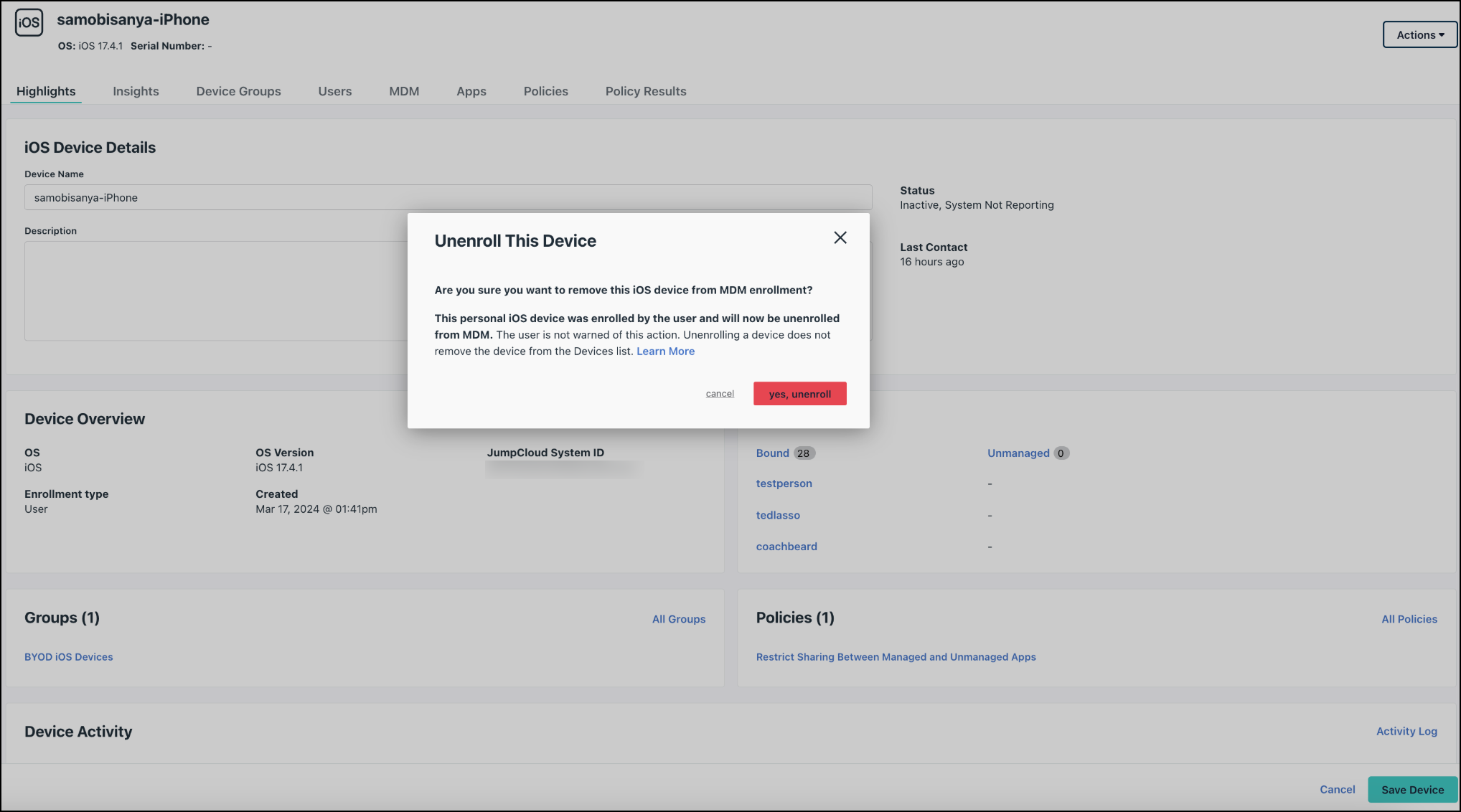
- To verify the unenrollment, click the MDM tab. The MDM Enrolled status will now be No. Note that unenrolling a device does not remove the device from the Devices List.
If you delete a personal or corporate-owned device from the Devices List in the Admin Portal, the device will also unenroll from MDM.
Delete an iOS or iPadOS Device Passcode
This command is applicable for the following devices:
- iOS 4.0+
- iPadOS 4.0+
Deleting a device passcode unlocks the device for the end user, allowing anyone to access the device without entering the passcode on the Lock Screen.
See Apple's documentation for more information on passcodes: Set a passcode on iPhone.
To clear the device passcode:
- From the JumpCloud Admin Portal, go to Device Management > Devices.
- Select the Devices tab, then select the iOS or iPadOS device.
- From the Actions menu, click Delete Device Passcode.
- On the confirmation, click yes, clear.
Enable Lost Mode for iOS or iPadOS
See Enable Lost Mode on Mobile Devices.
Delete an iOS or iPadOS Screen Time Passcode
This command is applicable for the following devices:
- Supervised iOS 8.0+
- Supervised iPadOS 8.0+
Deleting this clears the passcode on the device's Screen Time settings to unlock them, and removes any restrictions that have been set within Settings > Screen Time.
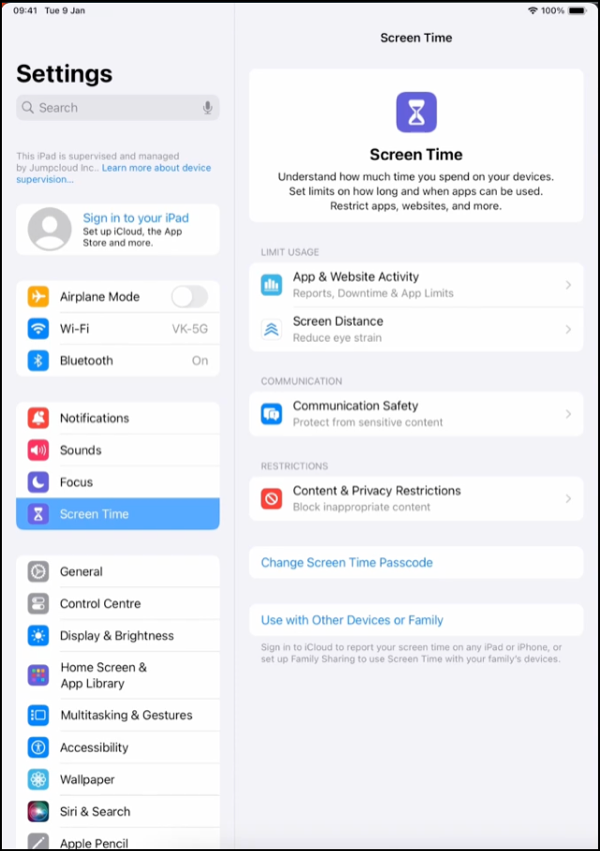
See Apple's documentation for more information about these settings: Set up Screen Time on iPhone.
To clear the Screen Time Passcode:
- From the JumpCloud Admin Portal, go to Device Management > Devices.
- Select the Devices tab, then select the iOS or iPadOS device.
- From the Actions menu, click Delete Screen Time Passcode.
- On the confirmation, click Delete.
Was this information helpful?