Install the JumpCloud Agent with a Template or System Image
A template or system image lets you set up multiple Windows or Linux devices that include the JumpCloud agent and share the same configuration. After you customize the operating system, applications, drivers, and settings on a single computer (the imaging host), pre-install the JumpCloud agent before you create the image and deploy it to other computers.
Any device deployed from the template or image has a unique device record in your JumpCloud organization.
Considerations:
- Pre-installing the agent on a template or image does not create JumpCloud user account associations. You must associate users with devices after each deployed device creates its unique device record. You can automate user associations with the JumpCloud API.
- On Windows imaging hosts, the default Windows service start timeout can be too short for the JumpCloud agent to start after deployment. If the agent service fails to start and returns Windows Error 1053, apply the registry modification in the procedure below before you capture the image.
Do not reboot the imaging host or restart the agent after you delete the agent files in Step 4 of Installing and Preparing the Agent on the Imaging Host. The agent is configured to start on boot. When the agent starts, it recreates the files and creates a unique device record in your organization. Deploying from an image with certificates and configuration files in place results in duplicate device records.
Disabling Automatic Windows MDM Enrollment
Before you install the agent on a Windows imaging host, disable automatic Windows MDM enrollment.
To disable automatic Windows MDM enrollment:
- Log in to the JumpCloud Admin Portal.
If your data is stored outside of the US, check which login URL you should be using depending on your region. If your organization uses LDAP, RADIUS, or requires firewall allow list configuration, the Fully Qualified Domain Names (FQDNs) will also be region specific. See JumpCloud Data Centers for the URLs, FQDNs, and IP addresses.
-
Go to Device Management > MDM.
-
Click the Windows tab.
-
Clear the Automatically enroll all Windows 10 & 11 devices into Windows MDM checkbox.
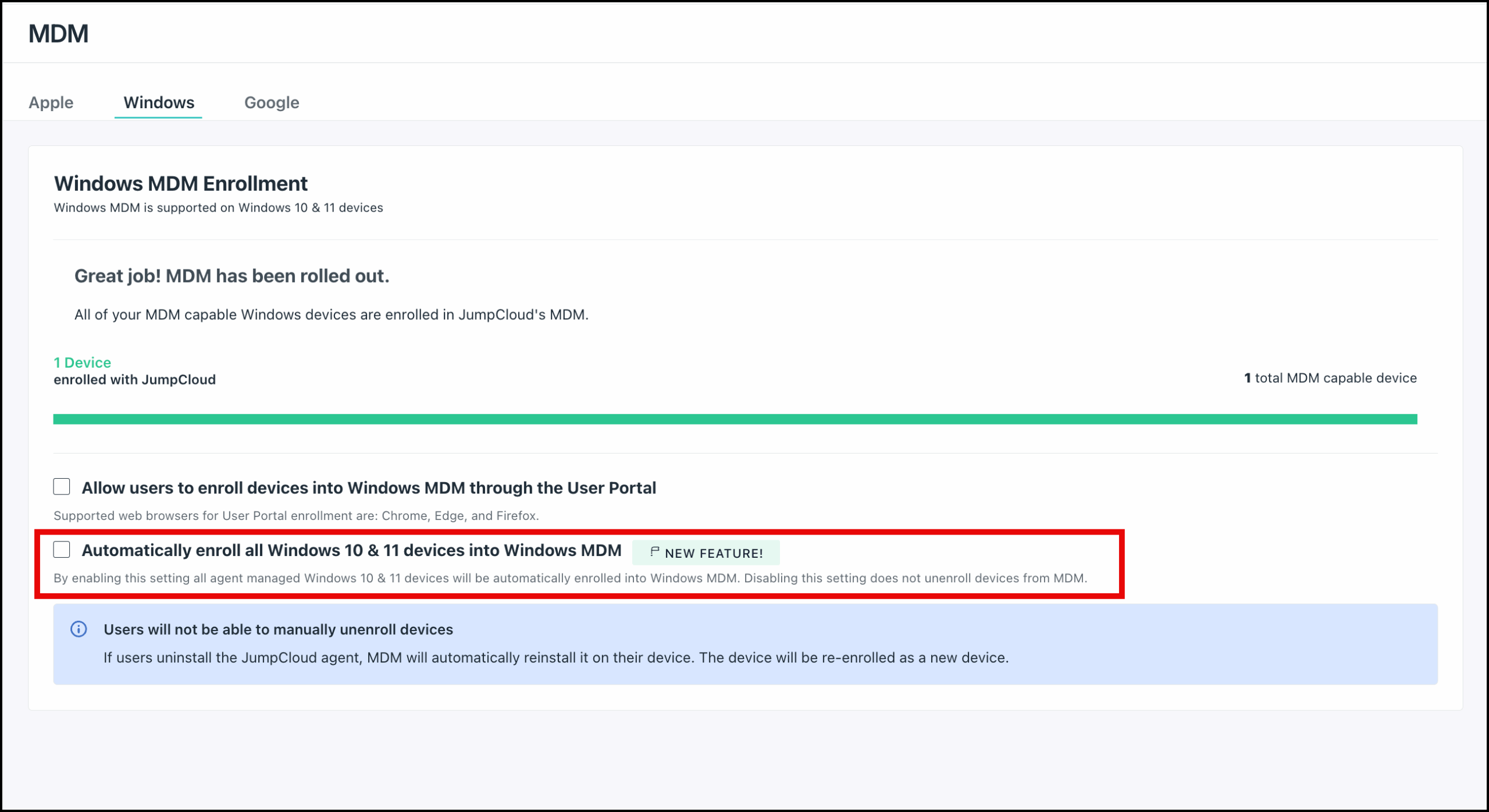
After you finish creating or updating the system image, you can re-enable this option.
Applying the Windows Service Timeout Registry Fix
Before you create your system image on a Windows imaging host, apply the following registry modification on the imaging host.
To apply the registry fix:
- Press Windows + R.
- Type
regeditand press Enter. - Click Yes on the User Account Control (UAC) prompt.
- In the Registry Editor address bar, paste this path and press Enter:
HKEY_LOCAL_MACHINE\SYSTEM\CurrentControlSet\Control - Right-click the Control folder, click New > DWORD (32-bit) Value, and name the value
ServicesPipeTimeout. - Right-click ServicesPipeTimeout and click Modify.
- Set Base to Decimal, type
240000in Value data, and click OK. - Fully restart the imaging host.
Installing and Preparing the Agent on the Imaging Host
To pre-install the agent on a template or system image:
-
On the imaging host, install the agent from the Admin Portal or the command line, and wait for the installation to complete.
-
Verify that the JumpCloud agent service is running:
- Windows: Press Windows + R, type
services.msc, and press Enter. Confirm that the JumpCloud Agent service status is Running. - Linux: Run
service jcagent status.
- Windows: Press Windows + R, type
-
Stop the agent on the imaging host:
- Windows: Open Command Prompt as an administrator and run
sc stop jumpcloud-agent. - Linux: Run
service jcagent stop. On Linux devices with systemd, you can also runsystemctl stop jcagent.
- Windows: Open Command Prompt as an administrator and run
-
Delete the following agent files:
ca.crt,client.crt,client.key, andjcagent.conf.- Windows: Open
C:\Program Files\JumpCloud\Plugins\Contriband delete the files. - Linux: Run
sudo rm -f /opt/jc/ca.crt /opt/jc/client.crt /opt/jc/client.key /opt/jc/jcagent.conf
- Windows: Open
-
Delete the imaging host's device record from the Admin Portal. Otherwise, the device record is orphaned.
- Go to Device Management > Devices, then select the Devices tab.
- Select the checkbox next to the imaging host.
- Click delete.
You can also delete the device record using the JumpCloud API. See Using the JumpCloud API to Uninstall the Agent.
ImportantMake sure the agent is stopped before you delete the device record. If the agent is running when you delete the device record, the agent is also uninstalled from the imaging host.
-
Configure the template or image to set unique network parameters such as hostname, IP, and MAC before the agent starts. This forces the agent to use the details for the specific device when it checks in with JumpCloud rather than using those assigned to the template.
-
Without rebooting the imaging host, create the template or image.
-
Deploy the image to other devices.
-
On a deployed device, verify that the JumpCloud agent service is running (see Step 2) and that the device appears in the Devices list in the Admin Portal.
-
Associate users with each deployed device in the Admin Portal or through the JumpCloud API. See Bind Users to Devices to learn more.
Was this information helpful?