Import Credentials from a Custom File
Use Import from Custom File in Password Vault to add multiple credentials from a spreadsheet, especially when migrating from another password manager or external file.
Prerequisites
- Use one file per credential type.
- Include a column for each value you want the Password Vault to store.
Importing Credentials from a Custom File
You can run this import from either the Admin Portal or User Portal.
From the Admin Portal
- Log in to the JumpCloud Admin Portal.
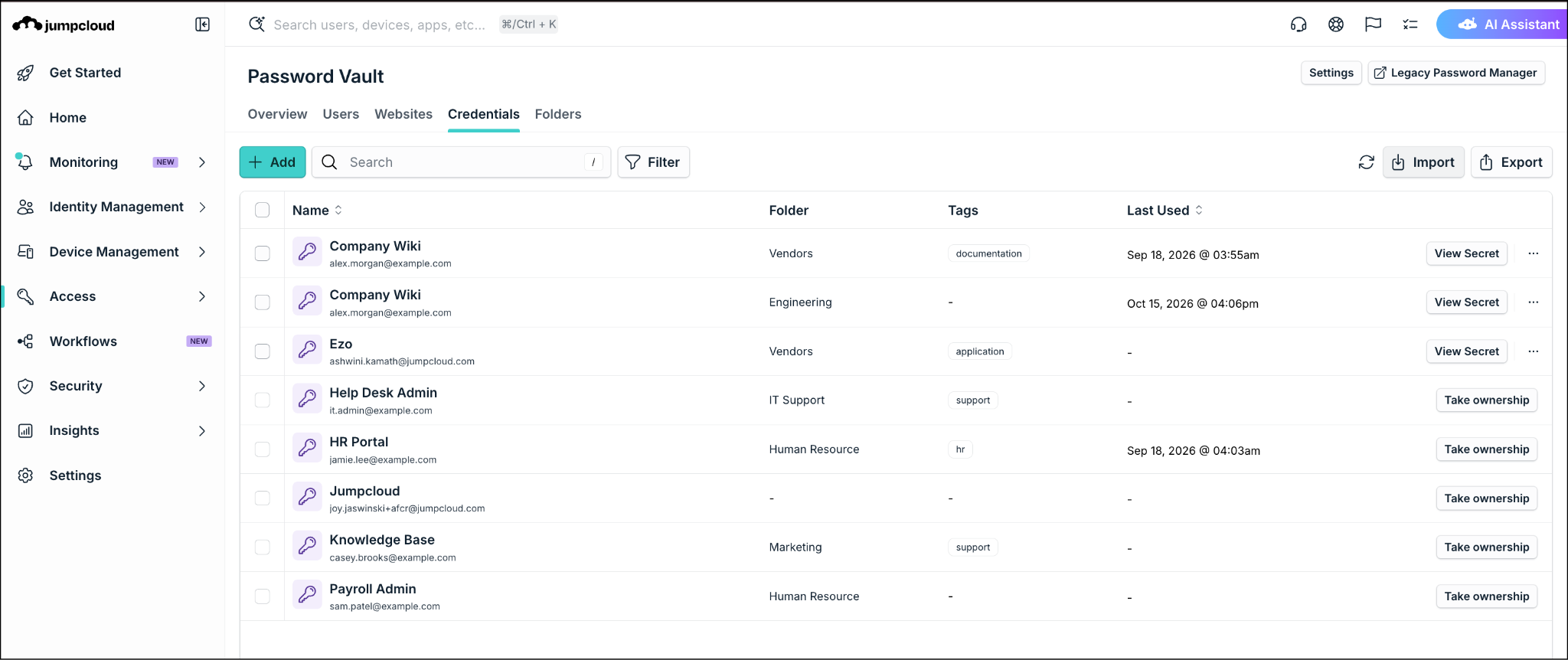
- Go to Access > Password Vault > Credentials.
- Click Import. The Import from Custom File page is displayed.
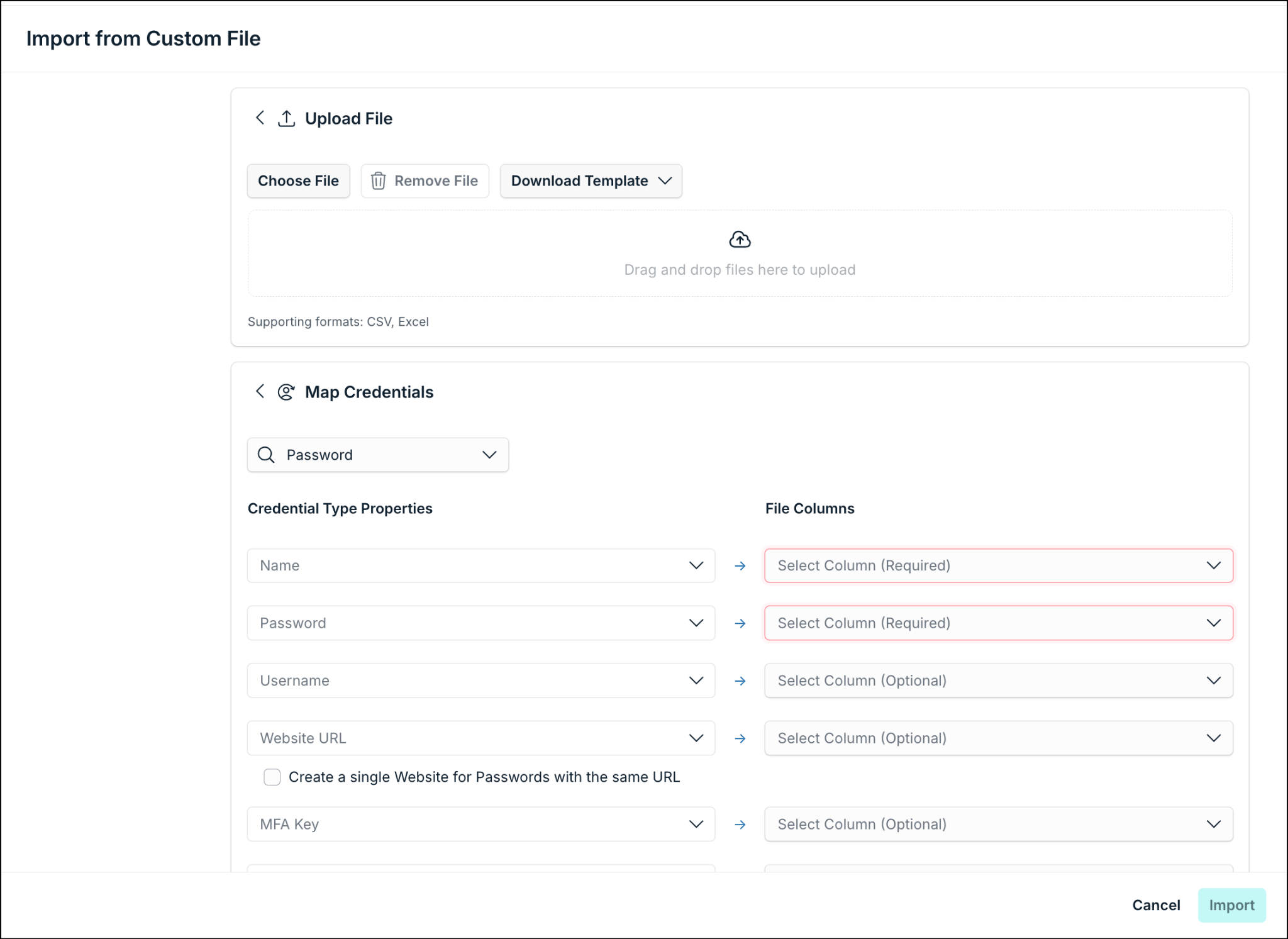
- On this page, click Download Template and choose a suitable template type from the dropdown list. The supported file formats are CSV, XLS, or XLSX.
- Fill the downloaded template with appropriate value.
- Click Choose File and upload it.
- Continue to field mapping.
From the User Portal
- Log in to the JumpCloud User Portal.
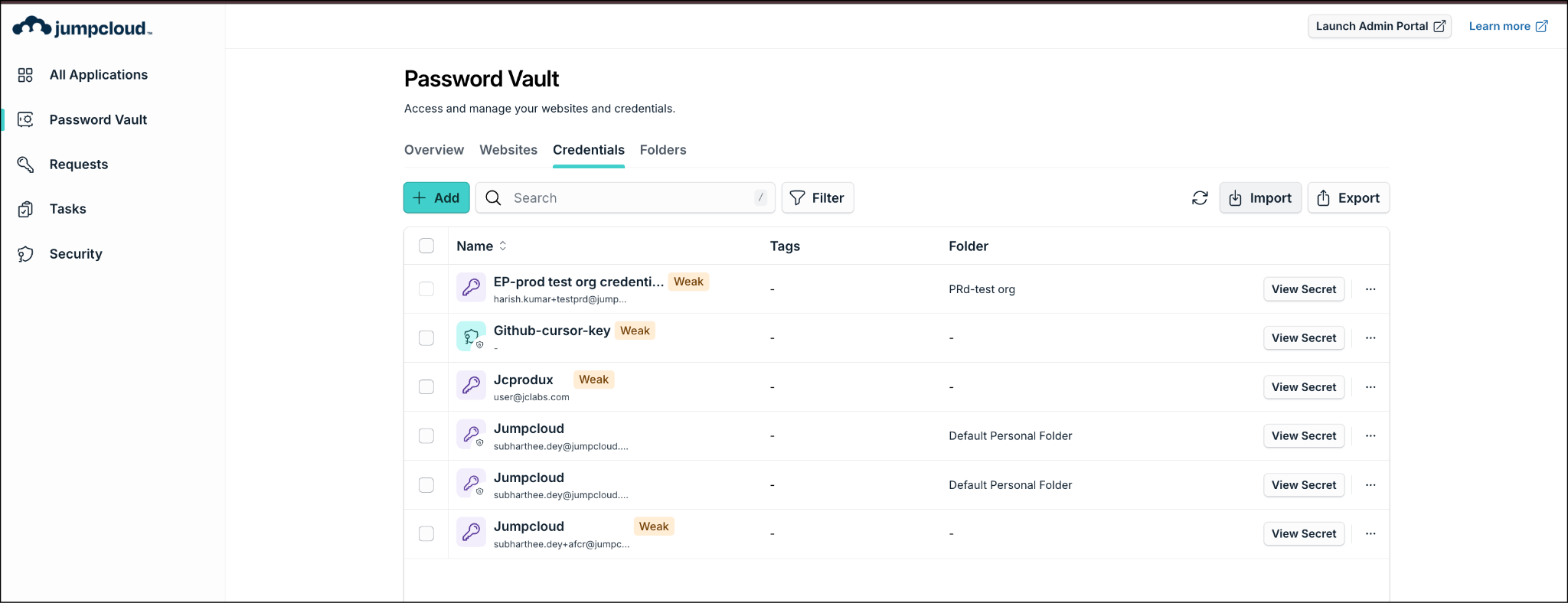
- Go to Password Vault > Credentials.
- Click Import. The Import from Custom File page is displayed.
- On this page, click Download Template and choose a suitable template type from the dropdown list. The supported file formats are CSV, XLS, or XLSX.
- Fill the downloaded template with appropriate value.
- Click Choose File and upload it.
- Continue to field mapping.
Mapping Fields
After uploading, map your spreadsheet columns to Password Vault credential fields.
- Select the matching file column for each Password Vault field.
- Map all required mandatory fields before proceeding.
- Map optional fields such as Website URL and tags if applicable.
- Set sharing preferences or choose a shared folder (individually or via folder, not both).
- Click Import.
In Password Vault, a website is a non-SSO app linked to credentials for launching URLs and autofilling with JumpCloud Go. Multiple credentials can share a single website.
When mapping Website URL, Create a single website for passwords with the same URL is selected by default.
This setting manages URL matching behavior:
- Selected (default): Combines credentials sharing a URL into one website entry.
- Cleared: Creates a separate website for each imported password.

Mapping Website URL for Password Credentials
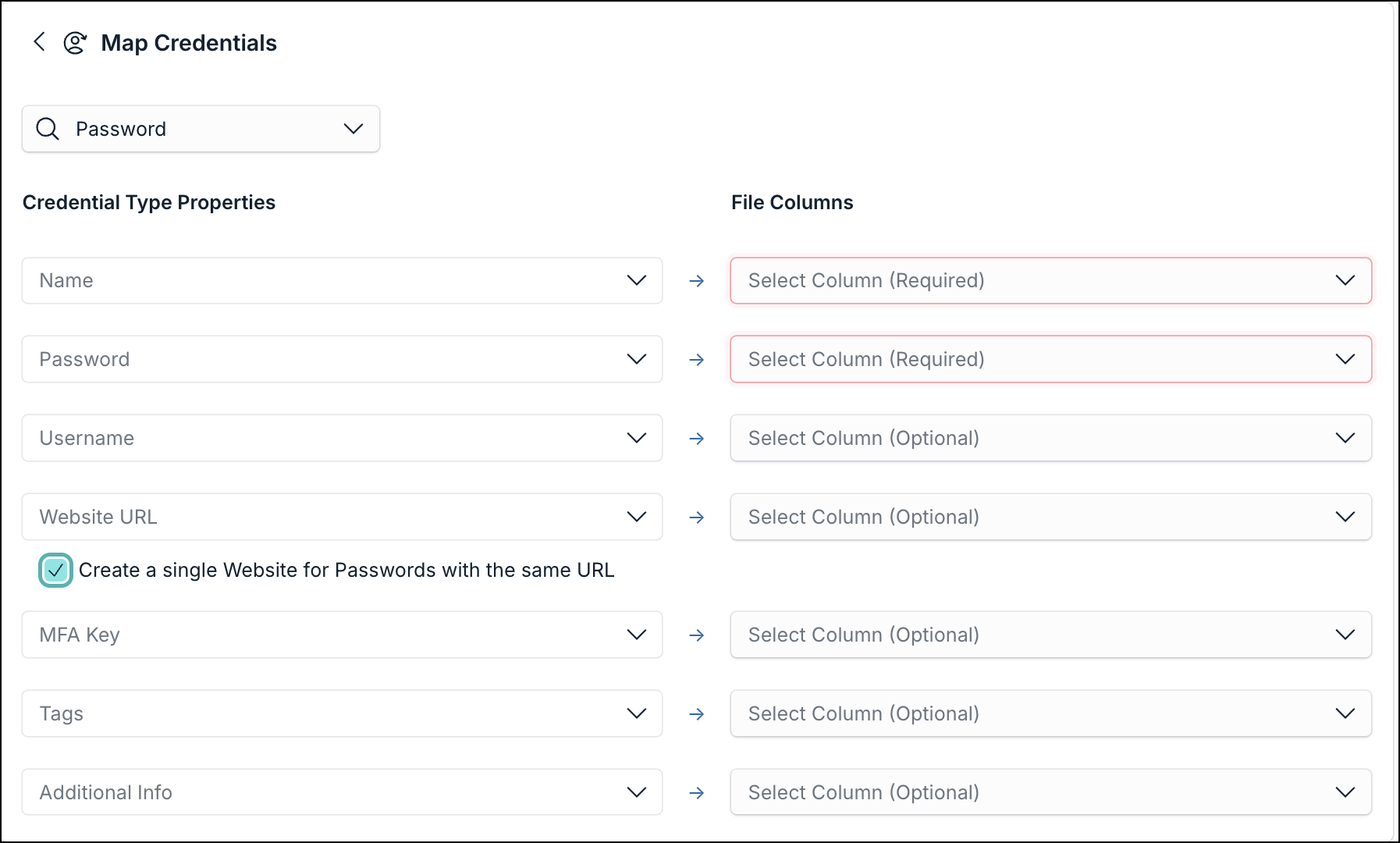
For Password credentials, map the Website URL column to enable URL-specific settings.
When mapped, the Create a single website for passwords with the same URL checkbox is checked by default.
Websites that share a domain but use different paths are treated as different websites. For example, www.facebook.com and www.facebook.com/login create two separate websites.
Linking Credentials to Websites
When importing credentials, under the Map Credentials section, you can link multiple credentials to the same website. Ensure website details match your file to link them properly.
Sharing Preference
During import, you can set Sharing Preferences so imported credentials are shared as soon as the import finishes. Choose users or user groups and assign access, or place the credentials in a shared folder. Credentials can be shared individually or through a shared folder, but not both. After you map your columns, select the sharing option you want, then click Import.
For permission details, see Sharing Websites and Credentials.
Was this information helpful?