Get Started: Privileged Access Management (PAM)
JumpCloud Privileged Access Management (PAM) lets you control and audit privileged access to servers, databases, and web resources. You can record sessions. You can use policies such as blocking rules to limit what users do after they connect.
PAM is available in the JumpCloud Admin Portal and the JumpCloud User Portal. You configure Jump Servers, privileged resources, credentials, sharing, and session history in the Admin Portal. Users launch assigned resources from the User Portal.
PAM supports more than one connection path. The path depends on the resource type and its settings. Not every session uses a Jump Server.
Prerequisites
- A JumpCloud organization with PAM available for your tenant (trial or licensed).
- Administrator with Billing access to the JumpCloud Admin Portal.
- For Servers, Databases, and Privileged Websites with Web Shield: a Linux host where you can install a Jump Server. The host must have network access to JumpCloud and to the resources users will reach.
- For Privileged Websites without Web Shield: JumpCloud Go installed in the user's browser.
- JumpCloud users (and user groups, as needed) who will receive privileged access.
Considerations
- A Jump Server must be reachable and report a status of Online for Servers, Databases, and Privileged Websites with Web Shield.
- Privileged Websites without Web Shield do not use the Jump Server for the session. They use JumpCloud Go in the user's browser. You can still enable session recording.
- Session recording depends on resource type and settings (for example Web Shield, DB Shield, and recording enabled on the resource). If recording is off, Session History does not include a video for that session.
- PAM sharing uses JumpCloud users and JumpCloud user groups only.
Understanding How Privileged Access Works
Jump Server Path
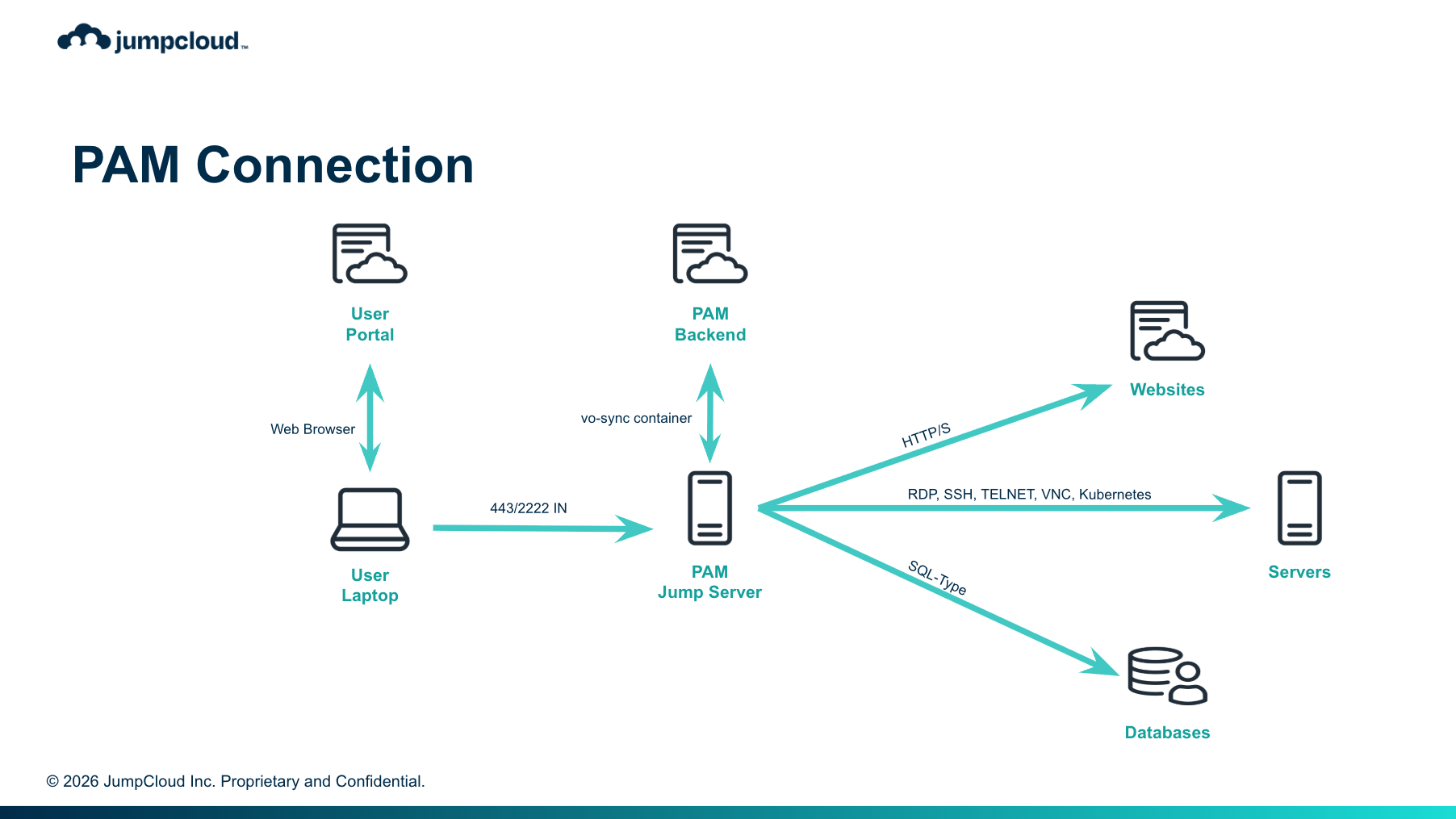
Most privileged sessions use a Jump Server that you install in your environment. The Jump Server connects the user endpoint to the target resource. The JumpCloud PAM Platform (Admin Portal and User Portal) manages access, credentials, and session control. The Admin Portal and User Portal are not an intermediate browser connection in the session path.
These sessions use three connection segments:
- User endpoint to Jump Server: The user connects to the Jump Server for the session.
- Jump Server and JumpCloud PAM Platform: authentication, credentials, and session commands.
- Jump Server to target resource: The Jump Server connects to the server, database, or Web Shield website.
This Jump Server path applies to:
- Servers
- Databases
- Privileged Websites with Web Shield enabled
For those resources, at least one Jump Server must report a status of Online before users can connect.
Privileged Website Without Web Shield
A Privileged Website can also run without Web Shield. In that mode:
- The user starts the connection from the JumpCloud User Portal (or Admin Portal).
- The JumpCloud Go browser extension autofills the website login in the user's browser.
- The browser connects to the website directly.
- The Jump Server is not in the session path for that connection.
You can also enable session recording for Privileged Websites without Web Shield.
Before you diagnose a Privileged Website issue, confirm whether Web Shield is enabled. When Web Shield is enabled, the Jump Server is in the path. When Web Shield is disabled, review the user browser, JumpCloud Go, and the website login path. Do not treat the issue as a Jump Server session path problem.
Reviewing Core Concepts
| Term | What it means |
|---|---|
| Jump Server | A proxy you install in your environment for Servers, Databases, and Privileged Websites with Web Shield. It is required for those paths. It is not used for Privileged Website sessions without Web Shield. |
| Privileged Resources | The targets users connect to: Privileged Websites, Servers, and Databases. |
| Privileged Websites | Web resources (HTTP/S) in PAM. With Web Shield, the session is isolated through a Jump Server. Without Web Shield, JumpCloud Go autofills login in the user's browser. You can enable recording in either mode. |
| Web Shield | Optional session isolation (Remote Browser Isolation, or RBI) for Privileged Websites. When enabled, the session runs through the Jump Server with isolation and related controls. |
| JumpCloud Go | Browser extension that autofills website login for Privileged Websites (with or without Web Shield). |
| Servers | Privileged server targets (for example SSH or RDP) that users reach through a Jump Server. |
| Databases | Database targets reached through a Jump Server. With DB Shield, sessions can be isolated and recorded. Without DB Shield, the connection does not use the same isolation, and video recording does not apply the same way. |
| Privileged Credentials | Credentials used to authenticate to privileged resources. Link them to resources and control who can use or view them. |
| Blocking Rules | Rules that can block or rewrite commands during protected sessions (for example database query controls). |
| Session History | An audit of completed sessions, including recordings and, for databases, Query history when available. |
| Resource Managers | Admin area for managing resource-level ownership and related permissions in PAM. |
| User Groups (in PAM) | JumpCloud user groups used with PAM for access and enrollment. PAM uses JumpCloud users and groups. It does not maintain a separate user directory. |
Opening Privileged Access Management
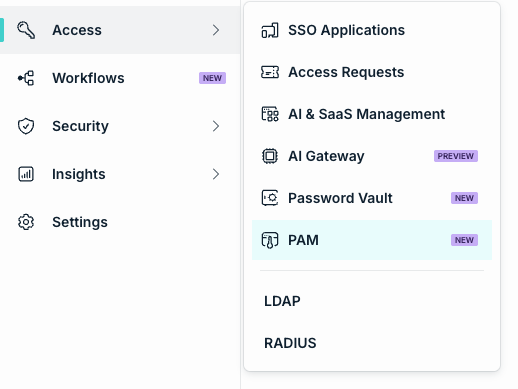
- Log in to the JumpCloud Admin Portal.
- Go to Access > PAM.
The page title is Privileged Access Management. Use the tabs across the top to open each PAM area:
- Overview
- Privileged Resources
- Resource Managers
- Blocking Rules
- Jump Servers
- Session History
- User Groups
Following the Recommended Path to Get Started
Use this order the first time you set up PAM. Later articles cover each step in more detail.
Enabling PAM
If your organization has not enabled PAM, go to Access > PAM and complete the enable step on the Privileged Access Management landing page (for example Enable PAM). After PAM is enabled, the Overview tab and the other PAM tabs are available.
Installing and Verifying a Jump Server
If you will configure Servers, Databases, or Privileged Websites with Web Shield:
- Open the Jump Servers tab.
- Add a Jump Server and follow the install flow for your host.
- Confirm the Jump Server status is Online. If the status is not Online, review Health Check.
Do not make those resource types available to users until at least one Jump Server status is Online.
If you start with Privileged Websites without Web Shield only, users connect through JumpCloud Go in their browser. You can add a Jump Server later when you need Web Shield, Servers, or Databases.
Creating Privileged Credentials
- Open Privileged Resources.
- Open the Privileged Credentials type.
- Create the credentials you will attach to servers, databases, or Privileged Websites.
Adding Privileged Resources
On the Privileged Resources tab, create the targets users need:
- Servers
- Databases
- Privileged Websites (with or without Web Shield)
For Servers, Databases, and Privileged Websites with Web Shield, assign a Jump Server. Link Privileged Credentials, and configure session options such as recording or shield settings when the resource type supports them.
Sharing Access with Users or User Groups
On each resource (and on credentials, when needed), share access with JumpCloud users or user groups. Permissions include Manage, View Detail, and Connect. Only users and groups you share with can launch that resource from the JumpCloud User Portal.
Confirming Users Can Connect from the User Portal
- Have a test user log in to the JumpCloud User Portal.
- Open All Resources.
- Find the assigned Privileged Website, Server, or Database.
- Launch the resource and complete the connect flow (credential selection and related options when shown).
- For Privileged Websites without Web Shield, confirm JumpCloud Go completes the website login in the user's browser.
Monitoring Sessions
- Use resource Active Sessions (and Jump Server active sessions, when the Jump Server path applies) to monitor active sessions and disconnect if needed.
- Use Session History after sessions end to review recordings and, for databases, Query history.
Reviewing What Each PAM Area Is For
| Tab or area | Use it to |
|---|---|
| Overview | View a summary of PAM activity and status for your organization. |
| Privileged Resources | Create and manage Privileged Websites, Servers, Databases, and Privileged Credentials. |
| Resource Managers | Manage resource manager assignments and related permissions. |
| Blocking Rules | Define command or query controls for protected sessions. |
| Jump Servers | Install Jump Servers, review status, view active sessions, and migrate resources between Jump Servers. |
| Session History | Audit completed sessions, play recordings, and review database Query history. |
| User Groups | Work with JumpCloud user groups in the PAM context (for example enrollment and access patterns). |
| PAM Settings | Configure PAM settings such as Offline Player for downloaded recordings and Jump Server Backup. |
Was this information helpful?