Get Started: Enterprise Portal (Preview)
JumpCloud’s Enterprise Portal (EP) centralizes the control and management of multiple organizations from one dashboard. The EP enables Enterprise/Organization Administrators to do their work more efficiently, from a single, browser-based portal. Enterprise Admins can view top-level data for their managed orgs at-a-glance. They can also securely launch full management sessions from the EP for any sub organization in their Enterprise Portal.
Terminology:
- Enterprise Portal: Portal where Enterprise Admins manage settings for multiple organizations under one Enterprise Configuration. Differs from the JumpCloud Admin Portal, which is for one organization
- Enterprise (formerly Enterprise Configuration): Centralized hub for all the organizations' objects in the Enterprise Portal. Items can be created and shared for organizations in the Enterprise Portal from this hub
- Organizations: A division of the enterprise (for example a region or a country) that maintains its own users, devices, and resources
- Enterprise Administrator: Admin with the Enterprise Configuration scope. This scope grants access to all organizations and cannot be restricted
- Organization Administrator: Admin without the Enterprise Configuration scope. Access is limited to organizations they are explicitly granted
- Managed By: Shows Enterprise for enterprise-level resources, or the organization name for organization-level (local) resources
- Global Selector: Control in the EP that sets the current scope: Enterprise, View All, or a specific organization. It changes the scope of data and configuration you work with; it does not change your tenant or session
Prerequisites:
- EP is enabled for your account
Considerations:
- You can only access the Enterprise Portal by clicking Launch Admin Portal in your User Portal
- The Enterprise option appears in the Global Selector only for admins with Enterprise Configuration scope. Enterprise Admins automatically have access to all organizations — this cannot be altered
- Enterprise and View All never appear together for the same admin. Enterprise Admins see Enterprise; Organization Admins see View All
- Devices must be created at the organization level. They can appear in aggregate views but cannot be created at the Enterprise level
- Enterprise resources that are shared to an organization are read-only in organization contexts. Only an Enterprise Administrator in the Enterprise context can manage them
- Switching the Global Selector reloads the page scope. The previous selection does not keep stale data across contexts
Enterprise Portal Login
- Log in to your JumpCloud Enterprise Portal from the User Portal by clicking Launch Admin Portal.
You cannot access the EP directly. You must always launch it from your User Portal.
- You will always start on the Organizations page.
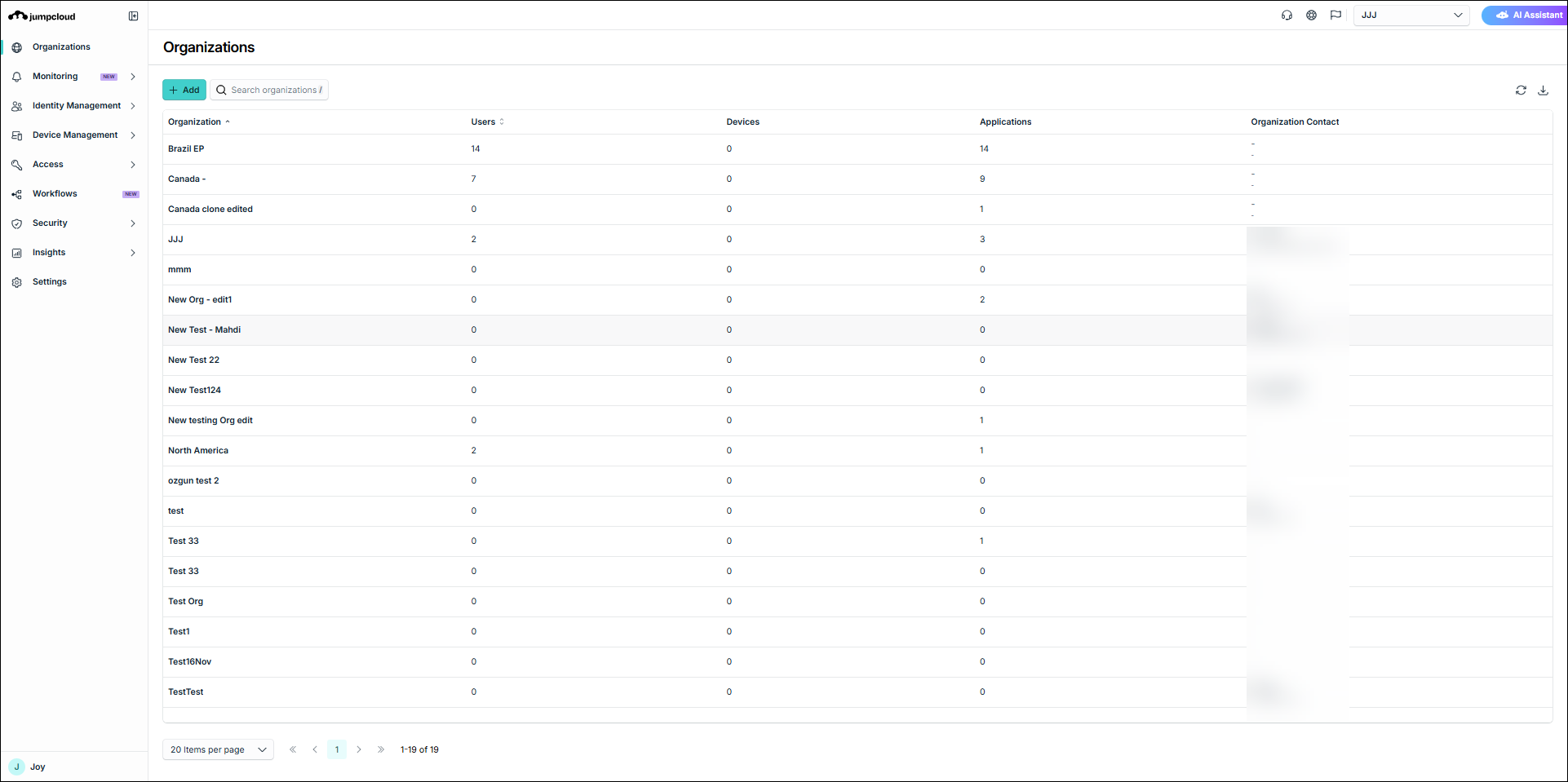
Enterprise Portal Left Navigation
Your Enterprise Portal has a Left Nav that is similar to the JumpCloud Admin Portal:
- Organizations
- Create, launch, view, and manage your orgs
- See Manage Organizations in the Enterprise Portal to learn more
- Monitoring
- View all Alerts and Access Risks
- See Device Monitoring and Alerting in the Enterprise Portal and Get Started: Access Risk Detection to learn more
- Identity Management
- View all users, groups and directory integrations
- See the following to learn more:
- Device Management
- View all existing devices, add new, or perform a variety of other actions for devices.
- See the following to learn more:
- Access
- View SSO Applications, Access Requests, AI and SaaS Management, AI Gateway, Vault, LDAP and Radius
- See SSO Applications in the Enterprise Portal and Integrate with Google SSO in the Enterprise Portal
- Workflows
- View workflows used to automate common identity, device and access tasks
- See Get Started: Workflows to learn more
- Security
- View Conditional Access and Password Policies, Lists, MFA Configurations and Device Trust
- See Configure Global MFA to learn more
- Insights
- View Reports and Directory Insights
- See JumpCloud Directory Insights to learn more
- Settings
- View the settings for your Enterprise Portal
- See Settings in the Enterprise Portal to learn more
Enterprise Portal Top Menu

- Live Chat: Access support options, such as submitting a support ticket, submitting an enhancement request, viewing the JumpCloud Knowledge Base, or talking with Professional Service
- Support: Access the Case Portal
- What's New: See a list of the latest Help Center articles and updates
- Global Selector: Set the scope for what you see and manage (Enterprise, View All, or a specific organization)
- AI Assistant: Access AI Assistant to help manage your organizations
Using the Global Selector
The Global Selector sets the scope of data and configuration you work with across the EP. Use it to switch between an aggregated view and a specific organization.
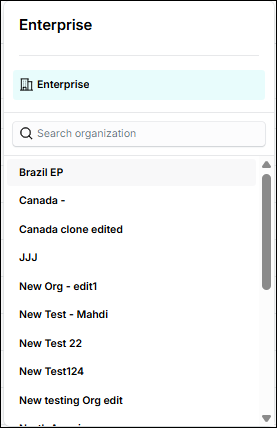
- In the top right corner of your EP, click the Global Selector.
- Select Enterprise, View All, or a specific organization (options depend on your permissions).
Global Selector options by permission
| Persona | Selector options |
|---|---|
| Enterprise Administrator | Enterprise and every organization |
| Organization Administrator | View All and the organizations they are authorized to manage |
What each selection returns
| Selection | Who uses it | What pages return |
|---|---|---|
| Enterprise | Enterprise Administrator | Aggregated view across the Enterprise and all organizations: enterprise resources plus every organization's resources. Enterprise resources are manageable in this context |
| View All | Organization Administrator | Aggregated view across the organizations the admin can access: those organizations' local resources plus enterprise resources shared to them. Enterprise resources are read-only |
| A specific organization | Either persona (for orgs they can access) | Scoped to that organization: its local resources plus enterprise resources shared to it |
Enterprise and View All both sit at the top of the selector tree as aggregate views. The difference is management power: Enterprise can manage enterprise resources; View All cannot.
Managed By in list views
In list views, use the Managed By column (and filter) to see ownership:
| Resource type | Managed By value | Who can edit attributes and sharing |
|---|---|---|
| Enterprise resource | Enterprise | Only an Enterprise Administrator in the Enterprise context. Read-only for Organization Administrators wherever the resource is shared |
| Local resource | Organization name | Admins with access to that organization, in that organization's context or an aggregate context |
Users and devices always appear as local resources. They show in aggregate views (Enterprise or View All), but you cannot create them at the Enterprise level.
Creating resources from the Global Selector
What happens when you click Add or Create depends on your persona and Global Selector selection.
| Persona · Global Selector | What happens on create |
|---|---|
| Enterprise Administrator · Enterprise | A modal asks you to choose Enterprise or a specific organization. For users and devices, only organization options appear |
| Enterprise Administrator · Specific organization | No modal. The resource is created in that organization |
| Organization Administrator · View All | A modal asks you to choose which of your organizations. Enterprise is never offered |
| Organization Administrator · Specific organization | No modal. The resource is created in that organization |
Enterprise resources and sharing
Enterprise-level resources can be shared to organizations. Sharing models differ by resource type:
| Sharing model | Behavior | Examples |
|---|---|---|
| Default-shared | Automatically shared to every organization | User Groups, Device Groups, Policies, Policy Groups |
| Selectively shared | An Enterprise Administrator chooses which organizations receive the resource | SSO Applications, Software Management, enterprise directory integrations |
Local resources stay in the organization where they were created and cannot be shared to other organizations.
Directory Insights and the Global Selector
Directory Insights (DI) follows the same Global Selector scope:
- Enterprise: View enterprise-level events and events across organizations
- View All: View events for the organizations you can access
- Specific organization: View events for that organization
Directory Insights logs are preserved for deleted organizations. See JumpCloud Directory Insights to learn more.
Enterprise Portal Profile Menu
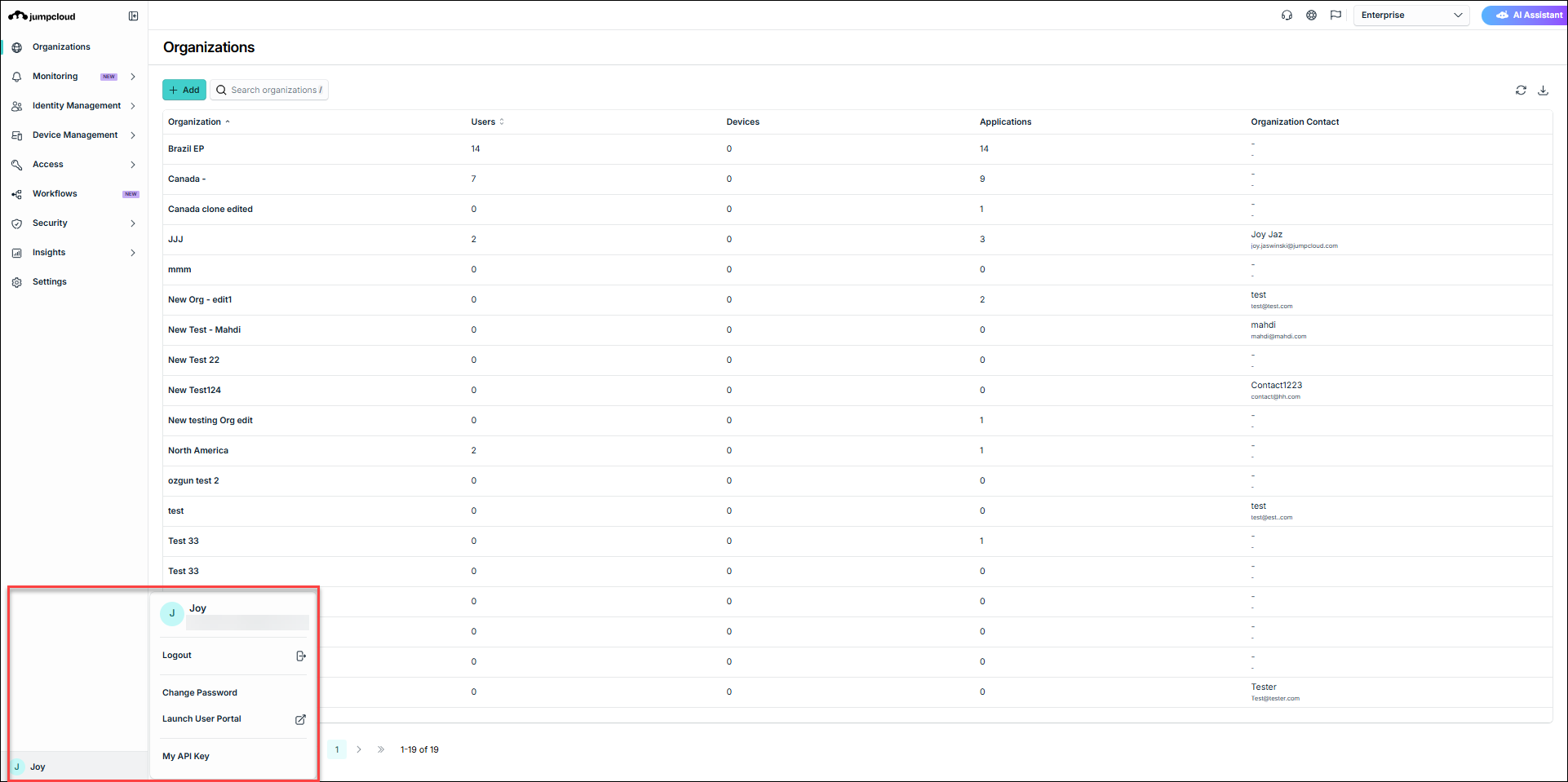
- In the bottom left corner, click your name.
- The menu has multiple options for you to select from:
- Logout: Log out of the EP
- Change Your Password: See Reset Passwords to learn more
- Launch User Portal: See Get Started: User Portal to learn more
- My API Key: See JumpCloud APIs to learn more
Was this information helpful?