Custom Banned Password List
The Custom Banned Password List lets you block specific words and phrases from being used in passwords. You add terms to a single list for your org, then enable that list on the default password policy or on any custom password policy. When a user sets or resets a password, JumpCloud normalizes the password and rejects it if it contains any term from your list.
Terms are matched on a 'block if the password contains a match of any word' basis, so a single base term blocks its variants and combinations rather than requiring you to enter every variation.
Considerations
- The list holds a maximum of 500 words per organization.
- Matching is case-insensitive.
- The list is shared across policies. It is a single list per org that you enable for the default password policy and on custom password policies.
- On existing custom password policies, the Custom Banned Password List is disabled by default.
- On any new custom password policy, the checkbox is cleared by default and you select it to enable the list.
- You can save an empty list even when the list is enabled on a policy. When the list is empty, the policy displays a warning that the enabled checkbox has no effect on passwords.
Understanding the Custom Banned Password List
What the List Blocks
Users often choose common words, phrases, and patterns that are easy to remember, which gives threat actors an entry point. The Custom Banned Password List lets you add your own specific terms on top of JumpCloud's global banned password list.
Admins can add terms that are specific to their organization, such as:
- Company name and variations
- Internal brands and terms
- Product names
- Corporate acronyms
- Locations, such as company headquarters
- Words closely associated with your context
- Abbreviations that have a specific company meaning
How Matching Works
The list works in a 'block if the password contains a match of any word' format. You do not need to enter every variation of a term.
For example, consider a company named JumpCloud, based in Denver, that makes a product named RADIUS. Entering specific variations is wasteful and less secure:
JumpCloud!1JumpCloud@DenverJumpCloudRADIUS!JumpCloudDenverHQ
Instead, enter only the case-insensitive base terms:
JumpCloudDenverRADIUS
The password validation algorithm then blocks the weak variants and combinations of those base terms.
How Leetspeak Normalization Works
Before a password is checked against the list, JumpCloud applies a normalization layer for common leetspeak substitutions. The system takes the input password, applies the leet map translation to get the actual password, and validates that result against the banned password list. If a banned term is present, the password is blocked. Here are a few examples:
| Character in the password | Normalized to |
|---|---|
0 | o |
@, 4 | a |
$, 5 | s |
1, ! | l or i |
3 | e |
8 | b |
For example, a User enters P@ssw0rd123:
- Lowercase:
p@ssw0rd123 - Leet map:
password123 - The term
passwordis found in the password list, so the password is rejected.
Configuring the Custom Banned Password List
The Custom Banned Password List is configured from a settings action button within Password Policies.
-
Log in to the JumpCloud Admin Portal.
-
Go to Password Policies.
-
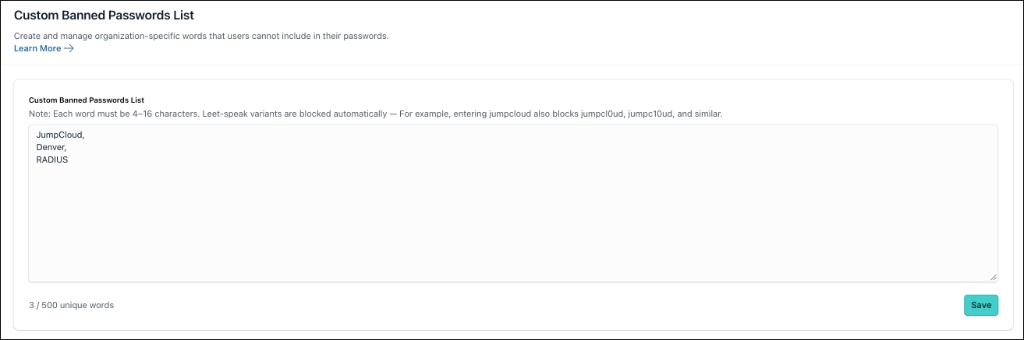
In the Custom Banned Password List section at the top, click the Manage List button.

The Custom Banned Password List page is displayed.
-
In the text box, enter your banned terms, one string per line.
-
Click Save. A toast message is displayed after saving the list successfully.
Entry Rules and Validation
| Rule | Detail |
|---|---|
| Maximum entries | 500 words per organization |
| Format | One string per line |
| Case sensitivity | Case-insensitive |
| Minimum string length | 4 characters |
| Maximum string length | 16 characters |
If you add more than 500 entries, a validation error is shown, either dynamically as you create entries or after clicking Save.
If a line contains a word that is shorter than the minimum or longer than the maximum, a dynamic validation error names the first entry in the list that has the error so you can fix it. Errors are progressively disclosed one at a time until every entry is valid.
If a line contains a word shorter than 4 or longer than 16 characters, the UI shows an error for the first such line (by line number). After you fix it, the next invalid line is highlighted. Only one error is shown at a time. After all the lines meet the length rules, a separate error appears if the list exceeds 500 unique words.
Applying the List to Password Policies
The banned password list you create is usable in both the default password policy and in any new or existing custom password policy.
- Existing custom password policies — the Custom Banned Password List is disabled by default. Select the checkbox on the policy to enable it.
- New custom password policies — the checkbox is cleared by default. Select it to enable the list on that policy.
- Default password policy — the list is available for use on the default password policy.
Saving an Empty List
You can clear all terms from the list and save it, even when the list is enabled on a password policy. In that case, the default password policy or custom policy displays a warning that the checkbox will not work on passwords because the custom banned password list is empty, even though it is enabled.
An enabled but empty list does not block any passwords. Add at least one term for the policy setting to take effect.
Understanding the End User Experience
When a User's password is rejected by the Custom Banned Password List, JumpCloud returns an industry standard error. The error gives direct guidance that tells the User what the problem is — the password is too common — while encouraging higher entropy.
Was this information helpful?