Configure VNC Protocol for a Server
PAM works at the protocol level. To connect to a server, PAM only needs the server to be reachable through the protocol that you choose, such as SSH, RDP or VNC. PAM does not depend on the operating system of the server.
VNC needs a VNC server running on the target server. PAM does not install, manage or configure it. This article explains what you need on the target server and what you configure in PAM.
Prerequisites
- A Jump Server in your organization.
- Network access from the Jump Server to the target server on the VNC port. The default port is 5900.
- The Administrator with Billing role, or the permission to add Servers.
Prepare the Target Server
These settings are outside of PAM. Use the documentation of your VNC software to configure them.
- Install and start a VNC server on the target server.
- Set the VNC server to use password authentication.
- Make sure that the VNC server listens on the same port that you enter in PAM.
The settings and the names of the options depend on the VNC software that you use.
PAM does not support certificates or keys for VNC, even if the VNC server offers them.
Add the Server in PAM
- In the JumpCloud Admin Portal, go to Access > PAM > Privileged Resources > Servers.
- Click Add Server.
- In the General card, complete the fields described below.
- In Session Control, select Disable clipboard.
- Complete the other cards of the server and save it.
| Field | What to enter |
|---|---|
| Protocol | Select VNC. |
| Port | The port of the VNC server. The default is 5900. If your VNC server uses another port, enter it here. |
| IP/Hostname | The IP address or the hostname of the target server. |
| Jump Server | The Jump Server that connects to the target server. It must reach the target server on the VNC port. |
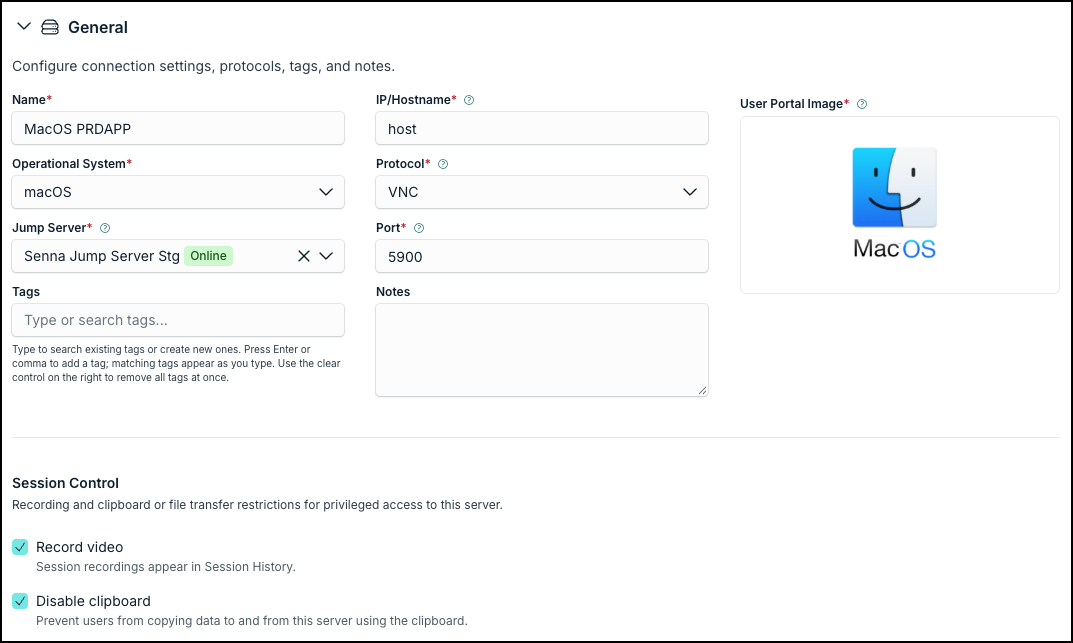
Disable clipboard is required for VNC. Select it every time that you add a server with the VNC protocol.
Next Steps
The other cards of a VNC server work as in any other server: the credentials that PAM uses, and the users and groups that can connect. See Add and Edit Servers.
Was this information helpful?