Archive and Restore Privileged Websites
When you no longer need a Privileged Website, archive it instead of deleting it. The Privileged Website stays in your environment so you can restore it and use it again later.
An archived Privileged Website disappears from the list and from the User Portal. Users cannot connect to it until you restore it. Archiving does not remove permissions or change any setting of the Privileged Website. When you restore it, it returns to the User Portal as it was.
Archiving a Privileged Website
- In the JumpCloud Admin Portal, go to Access > PAM > Privileged Resources > Privileged Websites.
- In the Actions column of the Privileged Website, click the three dots and select Archive.
- In the confirmation window, click Archive.
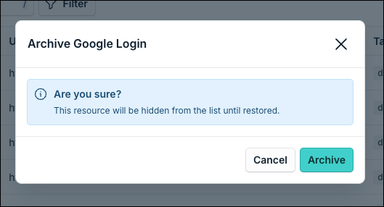
To archive several Privileged Websites at once, select their checkboxes in the table, click Archive in the bar at the bottom of the page, and confirm.

Viewing Archived Privileged Websites
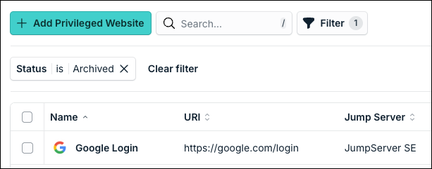
- On the Privileged Websites page, click Filter.
- In Status, select Archived and click Apply.
The table shows only the archived Privileged Websites. To go back to the active list, click Clear filter.
Restoring a Privileged Website
- Filter the list by Status Archived.
- In the Actions column of the Privileged Website, click the three dots and select Restore.
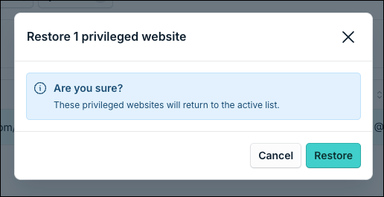
- In the confirmation window, click Restore.
To restore several Privileged Websites at once, select their checkboxes, click Restore in the bar at the bottom of the page, and confirm.
The Privileged Website returns to the active list, leaves the archived filter, and is available again in the User Portal.
Was this information helpful?