Allow Access to Insecure Websites in Web Shield
By default, Web Shield blocks access to websites that have an insecure connection, such as a website with an expired, self-signed, or untrusted Secure Sockets Layer (SSL) certificate. When a user opens one of these websites, the browser in the Web Shield session shows a security warning, and the option to continue to the website is not available.
You can turn on the Allow Insecure Websites setting. After that, users can select Advanced and then Proceed to confirm that they are aware the website is insecure, and connect anyway.
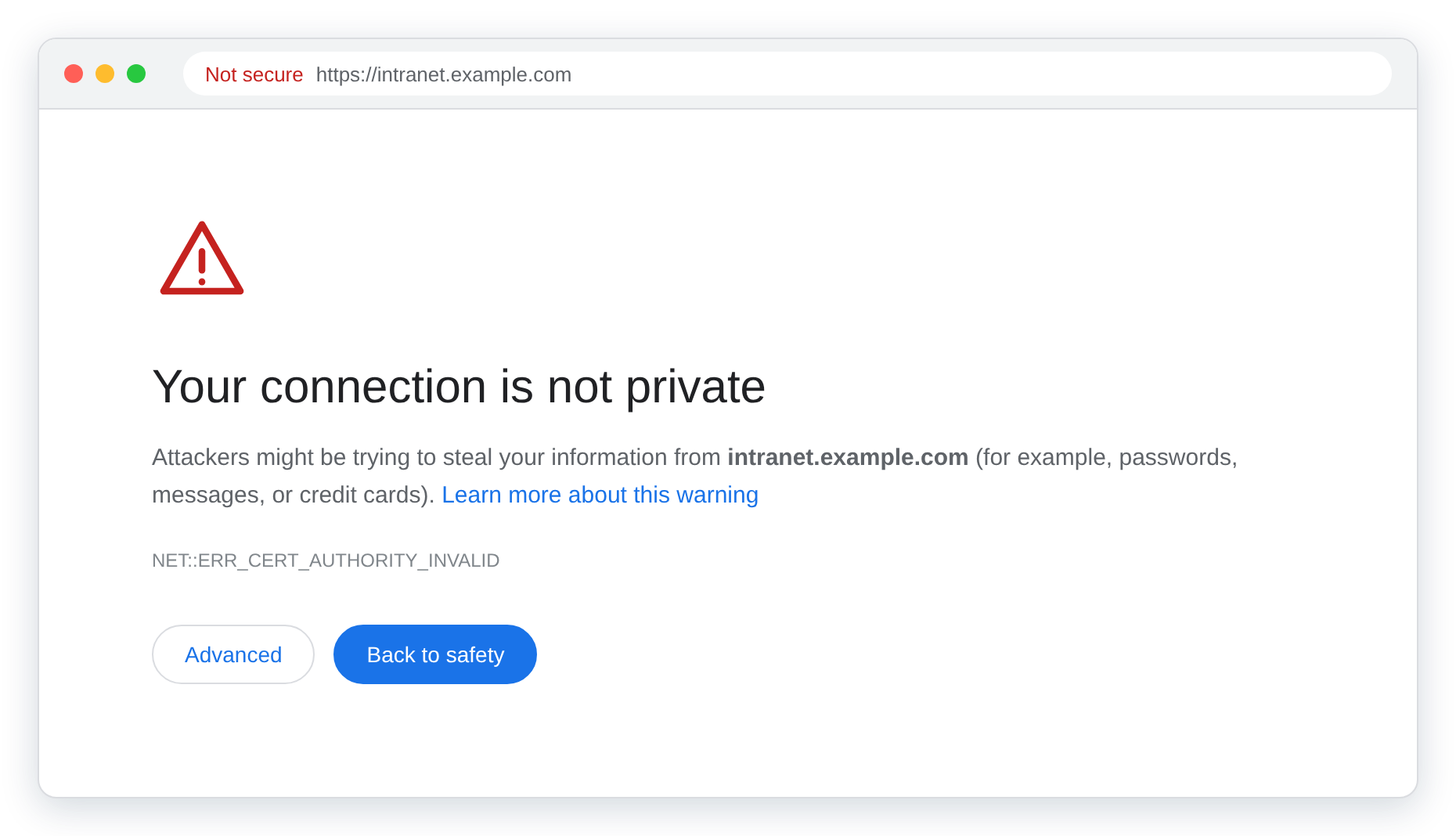
This setting lets users connect to a website without a valid SSL certificate. Turn it on only for websites you trust, such as internal websites that use a self-signed certificate. Whenever possible, install a valid certificate on the website instead.
Prerequisites
-
The Privileged Website must have Web Shield turned on.
-
You need permission to edit Privileged Websites in PAM.
Allowing Insecure Websites
-
Log in to the JumpCloud Admin Portal.
-
Go to Access > PAM > Privileged Resources.
-
Select Privileged Websites, and then open the website you want to edit.
-
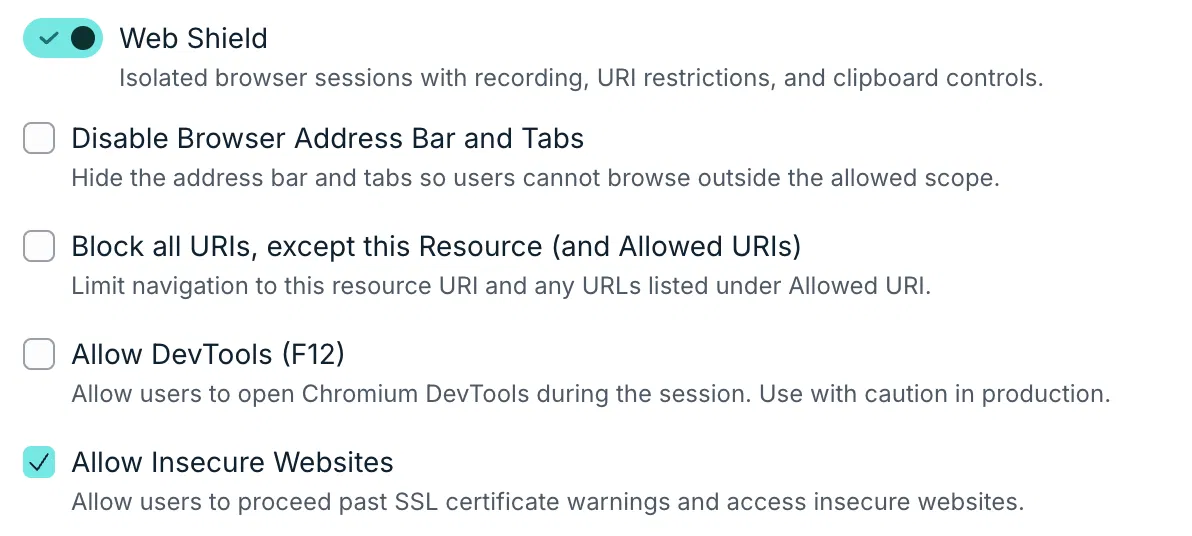
In the Web Shield section, select the Allow Insecure Websites checkbox.
- Save your changes.
The Allow Insecure Websites checkbox lets users proceed past SSL certificate warnings and access insecure websites.
Connecting to the Insecure Website
After you turn on the setting, users can continue to the website as follows.
-
Open the website from the User Portal, as usual.
-
When the browser shows the security warning, select Advanced.
-
Select Proceed.
Turning the Setting Off
To go back to the default behavior, clear the Allow Insecure Websites checkbox in the Web Shield section of the website, and save your changes. Users no longer see the Proceed option.
Was this information helpful?