Add and Edit Servers
In JumpCloud Privileged Access Management (PAM), a server is any resource that users reach with SSH, RDP, Telnet, VNC, or Kubernetes. A server can be a server, a switch, an access point, or any other network asset that supports one of these protocols.
This article explains how to add and edit a server. The form has five cards: General, Server Credentials, Server Access, Server Credential Access, and Server Managers. It is for IT Admins who manage privileged resources in PAM.
Prerequisites
- A Jump Server in your organization. To reach a server, the user connects to the Jump Server and the Jump Server connects to the server.
- Network access from the Jump Server to the server, on the port of the protocol. For example, port 3389 for RDP.
- The Administrator with Billing role, or being listed as a manager of the server. See Configuring Server Managers.
Adding a Server
- Log in to the JumpCloud Admin Portal.
- Go to Access > PAM > Privileged Resources > Servers.
- Click Add Server.
- Complete the cards described in the following sections.
- Click Save.
Configuring the General Card
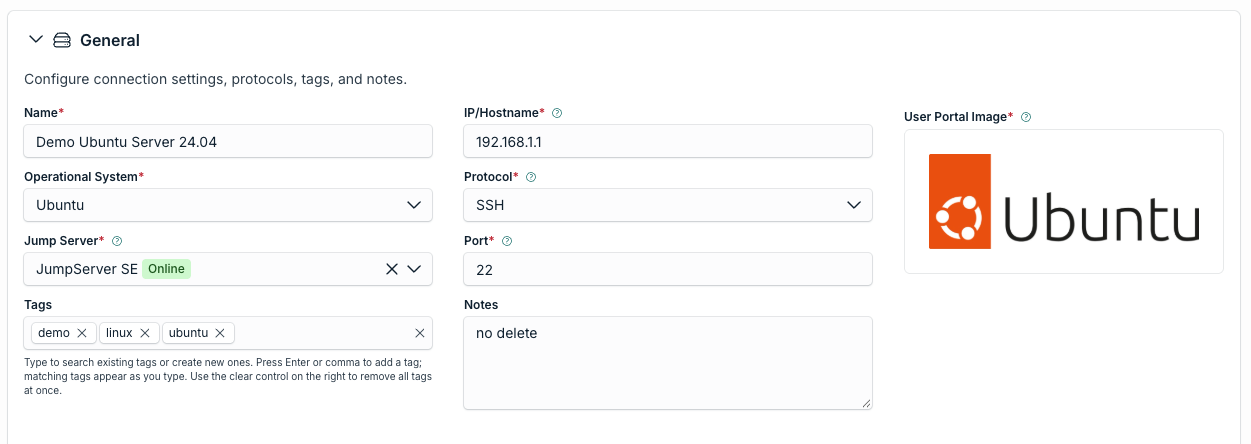
The General card has the basic information of the server.
| Field | Description |
|---|---|
| Name | The name users see for the server. |
| IP/Hostname | The IP address or hostname that the Jump Server uses to reach the server. |
| Operational System | The operating system of the server. It fills in other fields for you. See the following list. |
| Jump Server | The Jump Server that connects users to this server. |
| Protocol | SSH, RDP, Telnet, VNC, or Kubernetes. The protocol defines how users access the server, so it must match the service on the server. |
| Port | The port of the protocol. You can use a custom port, as long as the server listens on it and the Jump Server can reach it. |
| Tags and Notes | Optional. Use them to organize and describe the server. |
The Operational System list is a shortcut to complete the form faster. The list includes Windows Server, Ubuntu, Red Hat Enterprise Linux, Debian, CentOS, Amazon Linux, SUSE Linux Enterprise, Oracle Linux, Fedora, macOS, Kubernetes, and Other. When you select one, PAM sets the protocol, the default port, and the logo shown in the User Portal.
For example:
- Windows Server sets RDP and port 3389.
- Ubuntu sets SSH and port 22.
- Other show a generic server icon. Use it with any protocol for assets such as switches and access points.
You can change the protocol and the port after you select the operating system.
Custom logos are not supported. Logos come from the PAM logo library.
Configuring Extra Settings
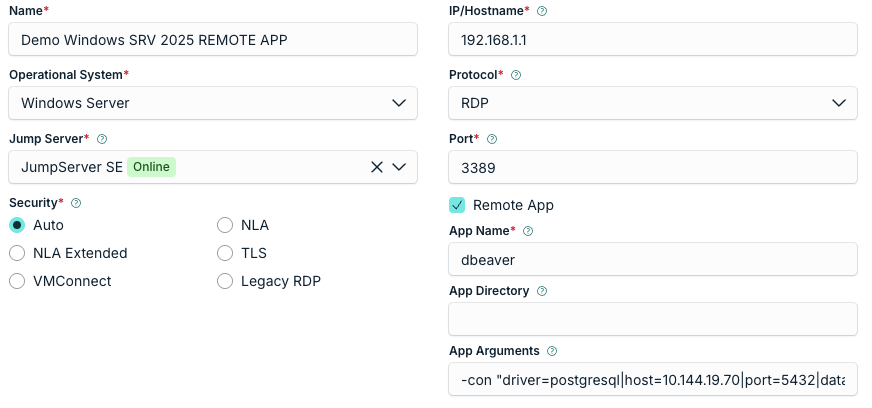
Extra settings are available for two operating systems:
- Windows Server (RDP): Security sets the security protocol of the remote session. It is required. The options are Auto, NLA, NLA Extended, TLS, VMConnect, and Legacy RDP. JumpCloud recommends Auto, which detects the security protocol of the server, such as NLA, and authenticates normally. You can also select Remote App to give access to a single application. See Access Server Applications via RemoteApp.
- Kubernetes: Namespace, Pod (required), and Container, plus the Use TLS/SSL option for the connection.
Configuring Session Control
Session Control is at the bottom of the General card. It applies to every server and has three options:
- Record video: records the session. Recordings appear in Session History.
- Disable clipboard: prevents users from copying data to and from the server.
- Disable file transfer: prevents users from transferring files to and from the server.
PAM does not record sessions started with Direct Access. To use Direct Access with a Windows Server, clear Record video.
Configuring Server Credentials
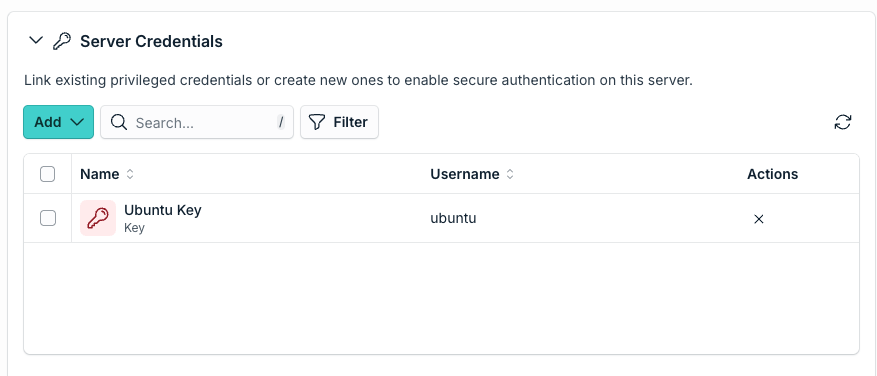
In Server Credentials, select the credentials that users can use to sign in to the server. Click Add to link an existing privileged credential or to create a new one without leaving the form. A server can have more than one credential.
Configuring Server Access
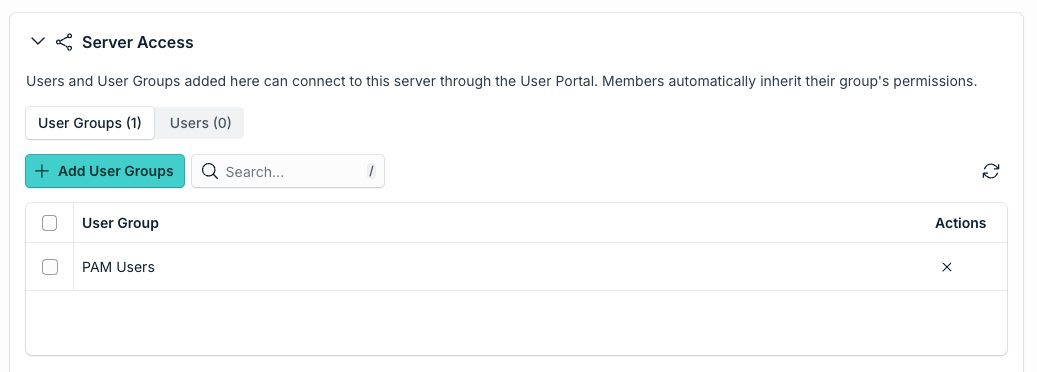
In Server Access, add the User Groups and Users that can connect to this server through the User Portal. Members of a group inherit the access of the group. This card controls access to the server only. You set the credentials they can use in Server Credential Access.
Configuring Server Credential Access
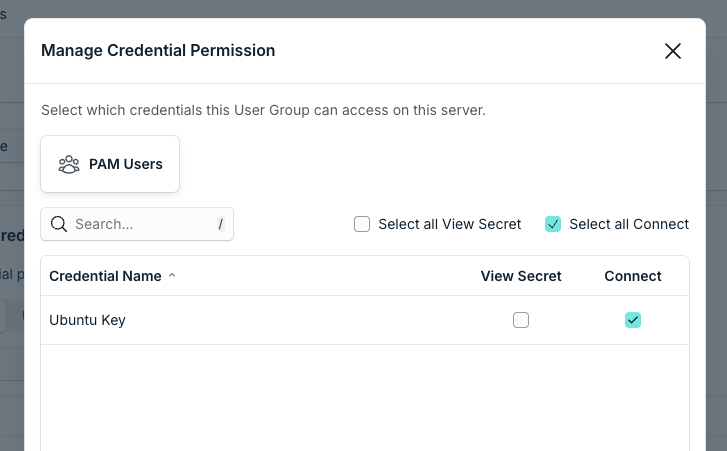
Server Credential Access lists the User Groups and Users you added in Server Access. For each one, click Manage Permissions and choose, for every credential of the server, one or both of these permissions:
- Connect: the user can connect to the server with the credential.
- View Secret: the user can see the secret of the credential.
For example, one group can use only the Administrator credential, while another group can use all the credentials of the server.
Configuring Server Managers
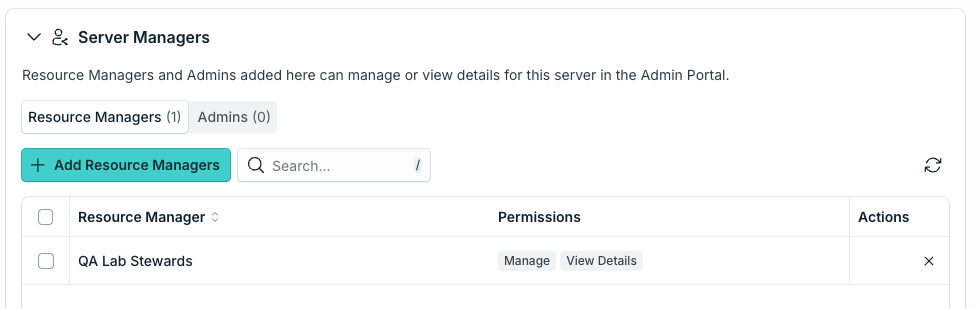
Administrators with Billing can manage all resources in PAM. Other Admins can see and edit this server only if they are listed in Server Managers. You can list them directly in the Admins tab, or through a Resource Manager in the Resource Managers tab. A Resource Manager groups Admins so that you can assign them together. If an Admin is not listed, the server does not appear in the list of servers for that Admin.
Server Managers is for Admins, not for Users.
Editing a Server
- Log in to the JumpCloud Admin Portal.
- Go to Access > PAM > Privileged Resources > Servers.
- Click the name of the server.
- Change the cards you need.
- Click Save.
Only Administrators with Billing and Admins listed in Server Managers can edit a server.
Was this information helpful?