Add and Edit Databases
In JumpCloud Privileged Access Management (PAM), you add databases as privileged resources. Users reach them through a Jump Server, with the credentials that you choose.
This article explains how to add a database and how to edit it. The form is divided into seven cards: General, Database Credentials, Database Access, Database Credential Access, Database Managers, Blocking Rules, and Rule Exceptions. It is intended for Admins who manage privileged resources in JumpCloud PAM.
Prerequisites
- A Jump Server in your org. To reach a database, the user connects to the Jump Server, and the Jump Server connects to the database.
- Network access from the Jump Server to the database, on the port of the provider.
- The Administrator with Billing role, or a listing as a manager of the database (see the Database Managers card).
Adding a Database
- In the JumpCloud Admin Portal, go to Access > PAM > Privileged Resources > Databases.
- Click Add Database.
- Complete the cards described in the next section.
- Save the database.
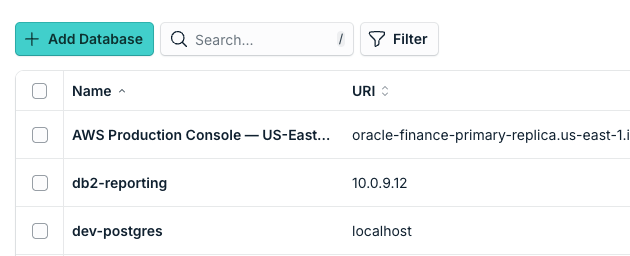
Configuring the Database
General
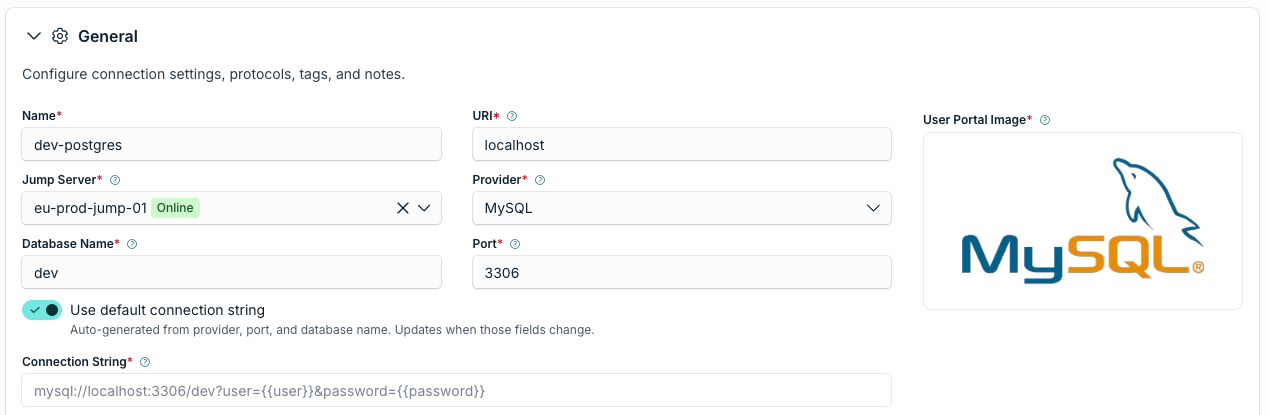
This card has the basic information of the database.
| Field | What to enter |
|---|---|
| Name | The name users see for the database. |
| URI | The IP address or hostname that the Jump Server uses to reach the database. |
| Jump Server | The Jump Server that connects users to this database. |
| Provider | The database engine. See the provider list below. |
| Database Name | The database that users connect to. |
| Port | The port of the database. PAM fills it in with the default port of the provider. You can use a custom port, as long as the database listens on it and the Jump Server can reach it. |
| Use default connection string | On by default. PAM generates the connection string from the provider, the port, and the database name, and updates it when you change them. Toggle off to enter your own connection string. |
| Tags and Notes | Optional. Use them to organize and describe the database. |
These are the providers that you can select, with their default ports:
| Provider | Default port |
|---|---|
| PostgreSQL | 5432 |
| MySQL | 3306 |
| MariaDB | 3306 |
| SQL Server | 1433 |
| Oracle | 1521 |
| Firebird | 3050 |
| DB2 (LUW) | 50000 |
| DB2 (iSeries) | 446 |
| Clickhouse | 8123 |
| Apache Kyuubi | 10009 |
| Other | The port of your database |
If your relational database is not in the list, select Other and enter the port, the database name, and the rest of the information. The database appears with a generic icon in the User Portal.
PAM supports relational SQL databases only. Non-relational databases are not supported.
Session Control
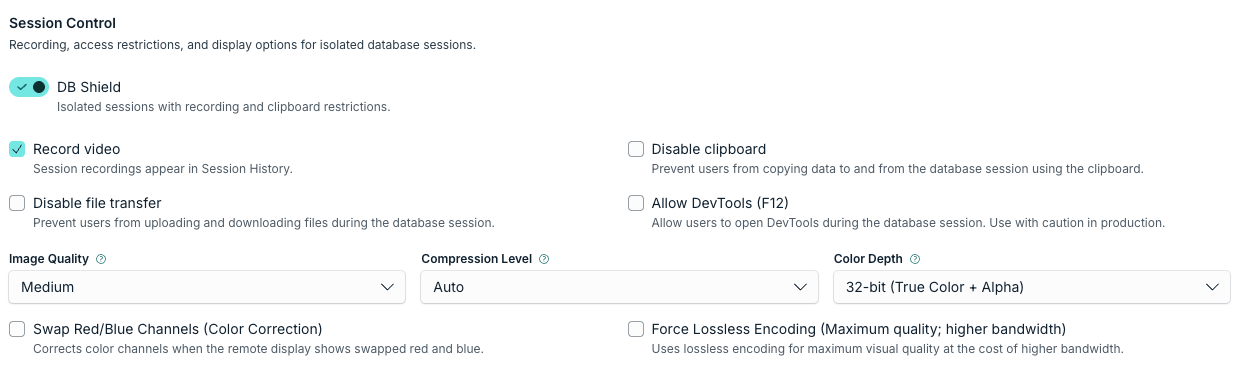
Session Control is at the bottom of the General card. Its main option is DB Shield, which you can turn on or off for each database.
- With DB Shield off, the session runs in the browser of the user. PAM records only the queries that the user runs.
- With DB Shield on, the session is isolated. It runs in a virtual browser inside the Jump Server, and PAM streams it as images to the user. For the user, it looks like a normal database session.
With DB Shield off, PAM cannot record video or apply the controls below. They are available only with DB Shield on.
| Option | What it does |
|---|---|
| Record video | Records the session. Recordings appear in Session History. |
| Disable clipboard | Prevents users from copying data to and from the database session. |
| Disable file transfer | Prevents users from uploading and downloading files during the database session. |
| Allow DevTools (F12) | Allows users to open the browser DevTools during the session. Use with caution in production. |
| Image Quality, Compression Level, and Color Depth | Adjust how the isolated session is streamed to the user. |
| Swap Red/Blue Channels (Color Correction) | Corrects the colors when the remote display shows red and blue swapped. |
| Force Lossless Encoding | Uses lossless encoding for the maximum visual quality, with higher bandwidth. |
Database Credentials
Select the credentials that users can use to authenticate to the database. Click Add to link an existing privileged credential or to create a new one without leaving the form. A database can have more than one credential.
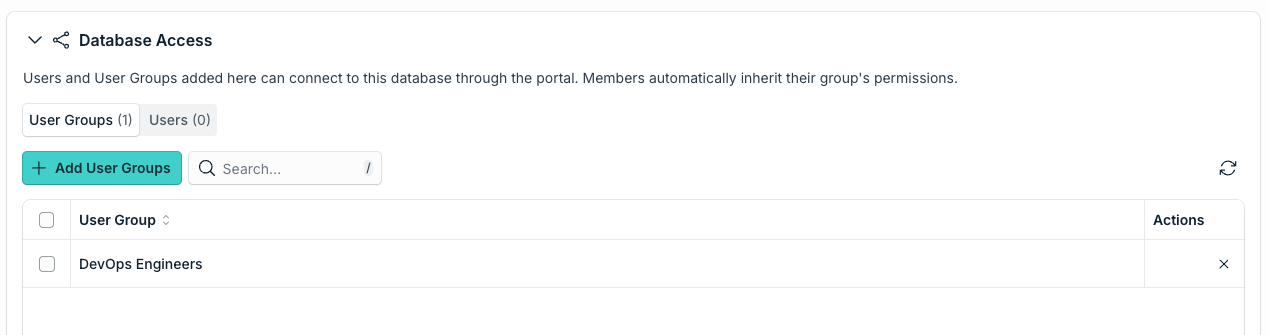
Database Access
Add the User Groups and Users that can connect to this database through the User Portal. Members of a group inherit the access of the group. This card controls access to the database only. The credentials they can use are set in the next card.
Database Credential Access
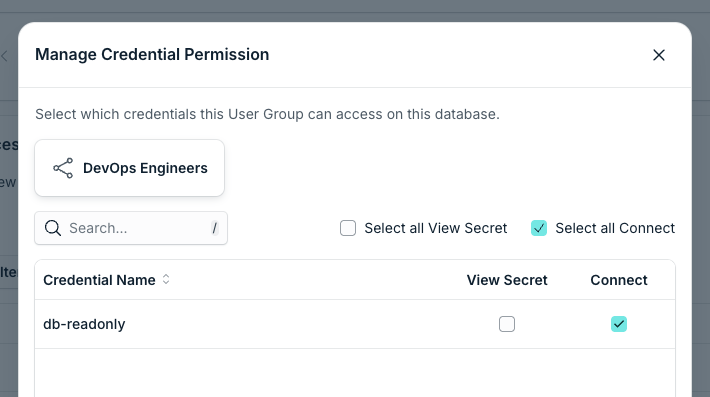
This card lists the User Groups and Users added in Database Access. For each one, click Manage Permissions and choose, for every credential of the database, one or both of these permissions:
- Connect: the user can connect to the database with the credential.
- View Secret: the user can see the secret of the credential.
Database Managers
Admins with the Administrator with Billing role can manage all resources in PAM. Other Admins can see and edit this database only if they are listed here, directly in the Admins tab or through a Resource Manager in the Resource Managers tab. If an Admin is not listed, the database does not appear in the list of databases for that Admin.
Database Managers is for Admins, not for Users.
Blocking Rules
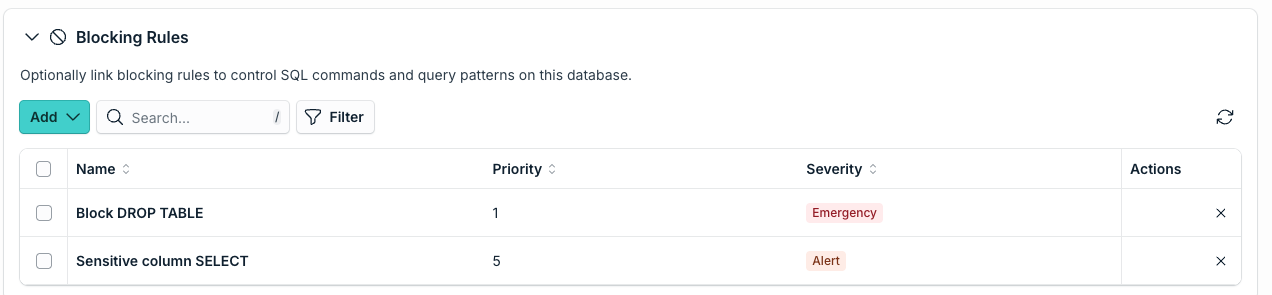
Blocking rules control the commands and queries that users can run in the database session. This card is optional. Click Add to link a rule that already exists or to create a new one without leaving the form. The table shows the name, the priority, and the severity of each linked rule. To learn how to create rules, see Configure Database Blocking Rules.
Rule Exceptions
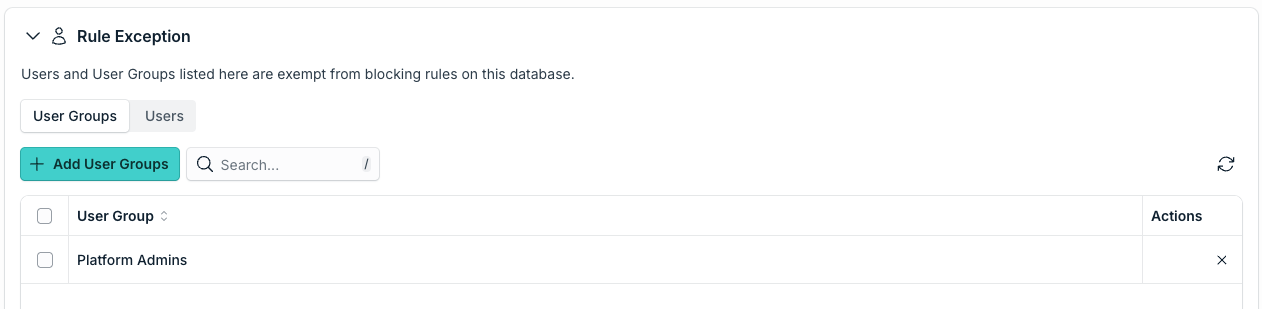
The Users and User Groups listed here are exempt from the blocking rules of this database. For example, if a rule blocks the DELETE command, add a group here so that its members can still run it.
Editing a Database
- Go to Access > PAM > Privileged Resources > Databases.
- Click the name of the database.
- Change the cards you need, then save the database.
Only Admins with the Administrator with Billing role and Admins listed in Database Managers can edit a database.
Was this information helpful?